Studio Coattails Developer Diary #1 - Radical Radials
Added 2019-04-11 01:26:23 +0000 UTCSe no~
Hiyo, my name is Kari and I'm the programmer for Studio Coattails. I wanted to talk about how I coded National Park Girls because there's a LOT to it and I think I'm pretty okay at it, and I also think I could share some stuff that helps people out with making their own games in Ren'Py. Specifically the UI for right now.
So, I dunno how much people know about Ren'Py or coding going in, so I'll try and write this as beginner friendly as I can. Ren'Py is a visual novel engine, meaning it's like a thing that you can put code, pictures, and sound things into, and it'll turn all of it into a thing you can play. Ren'Py is wonderful in part because of how easy it is to learn. It can seem daunting at first, but once you get into it you start seeing how everything connects and it's just. Really satisfying. It's the kind of game engine where you can force a square peg through a round hole if you try hard enough.
The biggest obstacle I ran into during development was getting the radial/quick menu working, but it's also the thing that got the most praise. So I figured I'd talk about that first.

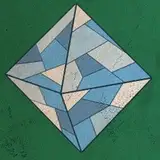
So, above is the quick menu. This is what pops up when you hit right click in game and it lets you go to the options menu, save your game, stuff like that. And below is what the quick menu intestinal track looks like.

So, let's go over this line by line, because a chunk of this also applies to a good bit of how I code UI.
"screen quick_menu():"
This bit is the name of the screen. So if you're on another screen and need to call the quick menu, then you can do it by putting "use quick_menu", which I actually have an example of that I can show off at the end. But for now just know that everything in this block we're gonna be talking about is a screen called quick_menu.
tag radialmenu
So, tags are fun. They make things with the same tag occupy the same physical space so you can only have one of them at a time, making it easier to be sure they won't overlap. I want the radial menu to be unique, so I made it so that it won't hide everything else by giving it it's own special house to live in by itself.
zorder 100
This is like Z axis order, and if it's 100 then it's like the best at being on the z axis so it's on top of everything else like the sprites and backgrounds.
this bunch of lines about getting a mouse position and x and y and stuff
So this is what makes it follow your mouse, because it's your mouse's best friend.
Default x and y = -1 gives the radial menu a default position at the coordinates x -1, y -1
And the next statement is an "if" statement, meaning it's like conditional. When the quick menu isn't on screen, it goes back invisible and to the x -1 and y -1. So if the coordinates are that, it'll do the "get mouse position" command again and use those new coordinates for x and y.
The next bit with the -252 is basically the borders of the screen that prevent users from clicking on a corner, leaving some of the options off screen.
That last line of code is actually something I got help from Lemmasoft for, so I'm not super clear on the mechanics of it, but I just kinda get what it wants to do. Which by the way, if you have questions, going to Lemmasoft will save your life 95/100 times. It's full of other ren'py devs who would be happy to help our and share ancient secret renpy hacks. THANKS LEMMASOFT AND WHOEVER CAME UP WITH THAT I LOVE YOU.
modal True
So, modal is simple. If it's true, you can't interact with anything except the screen that's on top. If this were false, you could keep clicking through dialogue while the radial menu was up and that wouldn't be good because you couldn't read it and it gets. Really confusing. So setting this to true just kinda helps make it so it's impossible to interact with the game in ways the user won't even realize for a bit.
IMAGE MAPS FUN FOR THE WHOLE FAMILY
So, all the menus in NPG use image maps. These are basically 2-5 files that are the same thing but with slight adjustments. Usually these are called "idle" and "hover" like they are here.


Ah yeah, there's also a line of code right under this that says to make the menu appear at the anchor 0.5, which basically means the center. 0.0 is top left, 1.0 is bottom right. This makes it so it blooms around your mouse like a beautiful flower.
After that, we define what we want the idle and hover images to be. When you hover over something, it turns into a pretty color! Yay!
OKAY HOTSPOTS ARE A LOT TO EXPLAIN SO LET’S GO
Hot spots are the main meat of what make up an image map. After you define the hotspot itself, you have to put in the coordinates. These are, in order: X position, Y position, X size and Y size. Thing of the X size and Y size as a box, and the numbers put in are the amount of pixels that make up that box's size. And if you use the positioning of the box into the top left and not the center.

After you give the
Skip - This just skips the dialogue, it's a pretty simple command. Confirm = true just asks if you want to bring up a confirmation box or not. Fast = true makes it skip fast really fast.
Auto - "Preference("auto-forward", "toggle")" This just toggles the setting that makes it so the text auto forwards. "Hide" hides the radial menu, but this doesn't work and I have no idea why, but I leave it in here to mock my own hubris. Feel free to email me at pleasehelpme@ohgodimdying.com if you find a way to get this to work!
Save - Takes you to the save screen
Load - Takes you to the load screen
Config - Takes you to the loading screen
Quit - This takes you back to the main menu, this doesn't really need a confirm screen on it for some reason.
TO WRAP IT UP: How to get it to actually show up in the game. AKA where we get to use that "use" statement I mentioned earlier.

So, by default right click brings you to a screen called save. Which is where you save the game. I couldn't figure out how to change that without messing with hidden files in Ren'Py itself that define what keybinds are, so instead I just deleted the save screen and put the quick menu in its place. Then when I realized 'Wait, crap, I still need a way to save the game' I created a successor, Son of Save Screen.

Very handsome and strong, with a great memory. Just like his father.
You'll wanna remove the "use quickmenu" bit from the say screen(dialogue and junk) too, so the quick menu just isn't constantly on by default.
ANYWAY THAT'S ALL Lemme know if you have any questions and I'll do my best to answer them. You can find me at @hikarihawkeye on twitter, or email me at KariTuberville@gmail.com.
Doki doki~