Hi guys,
I got few questions by some users who want to use SFV camera script to take custom screenshots but can't because they don't know what to do with it. I decided to write a short guide for you so you can play with the camera script.
1) You need latest version of Cheat Engine, download it from here https://cheatengine.org/
2) Install Cheat Engine.
3) Rename the Cheat Engine installation folder from Cheat Engine to something that does not have Cheat word in it, example CE7.1
4) Browse to the renamed installation folder and take a backup copy of the exe file CheatEngine-x86_64.exe then rename this exe to something without the word "Cheat" lets say CE.exe.
5) Open the renamed exe (CE.exe) in some hex editor, I recommend HxD https://mh-nexus.de/en/hxd/
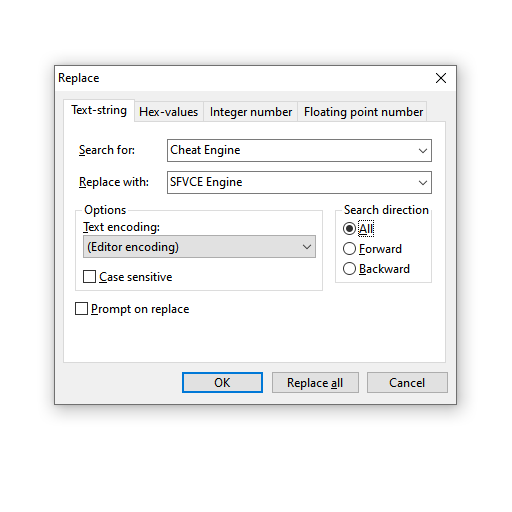
6) While in HxD press ctrl+r to open the replace window then type this.
Basically what you are doing is replacing every instance of the words Cheat Engine with something that matches the length of the those words but without the word Cheat in it so here I made it SFVCE Engine.
7) Press ok to continue with the change and then press ctrl+s to save the file.
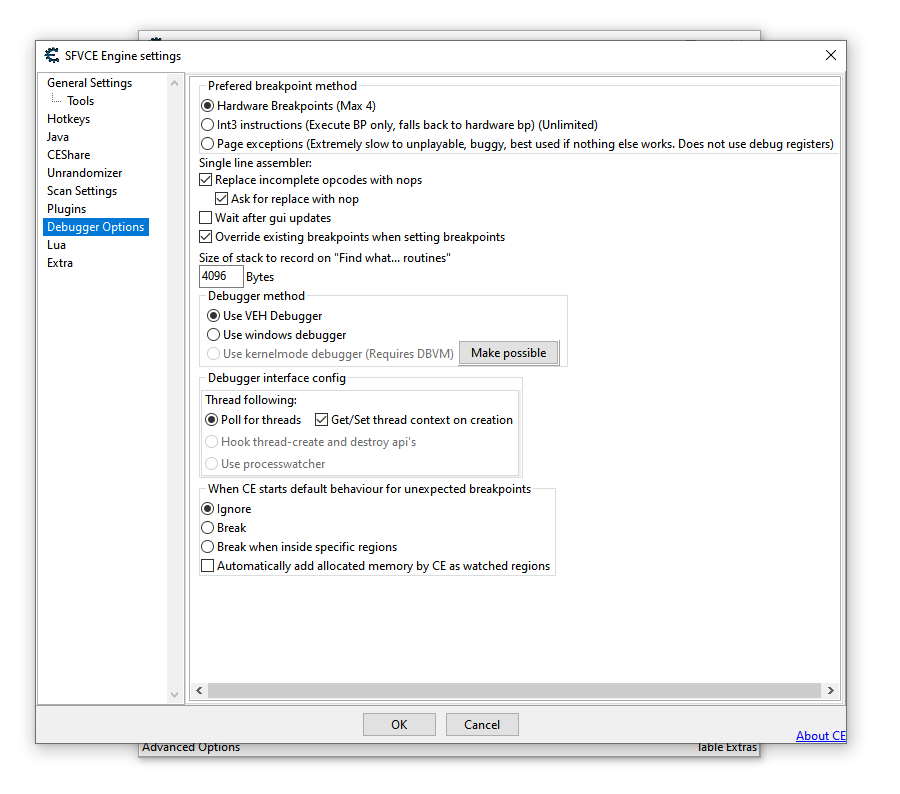
8) Now run this file go in Edit > Settings > Debugger Options and select VEH Debugger in Debugger method category.
9) Now download this file and drop this in autorun folder located inside Cheat Engine installation folder https://drive.google.com/file/d/1FRutZRkMcWQilOIKz8fEXOI4EtJ02CBC/view?usp=sharing
10) Now download the SFV camera script https://drive.google.com/file/d/1xLpcOhxvve0bfwnhU4BdQj_i89r9C40u/view?usp=sharing (credits: https://twitter.com/somberness)
11) Double click on the script file to run it, if it ask for the program to use then browse to the CE.exe file that we just edited to run the script.
12) Run Street Fighter V.
13) Go into some fight (training mode for example).
14) Alt+Tab out of the game to desktop.
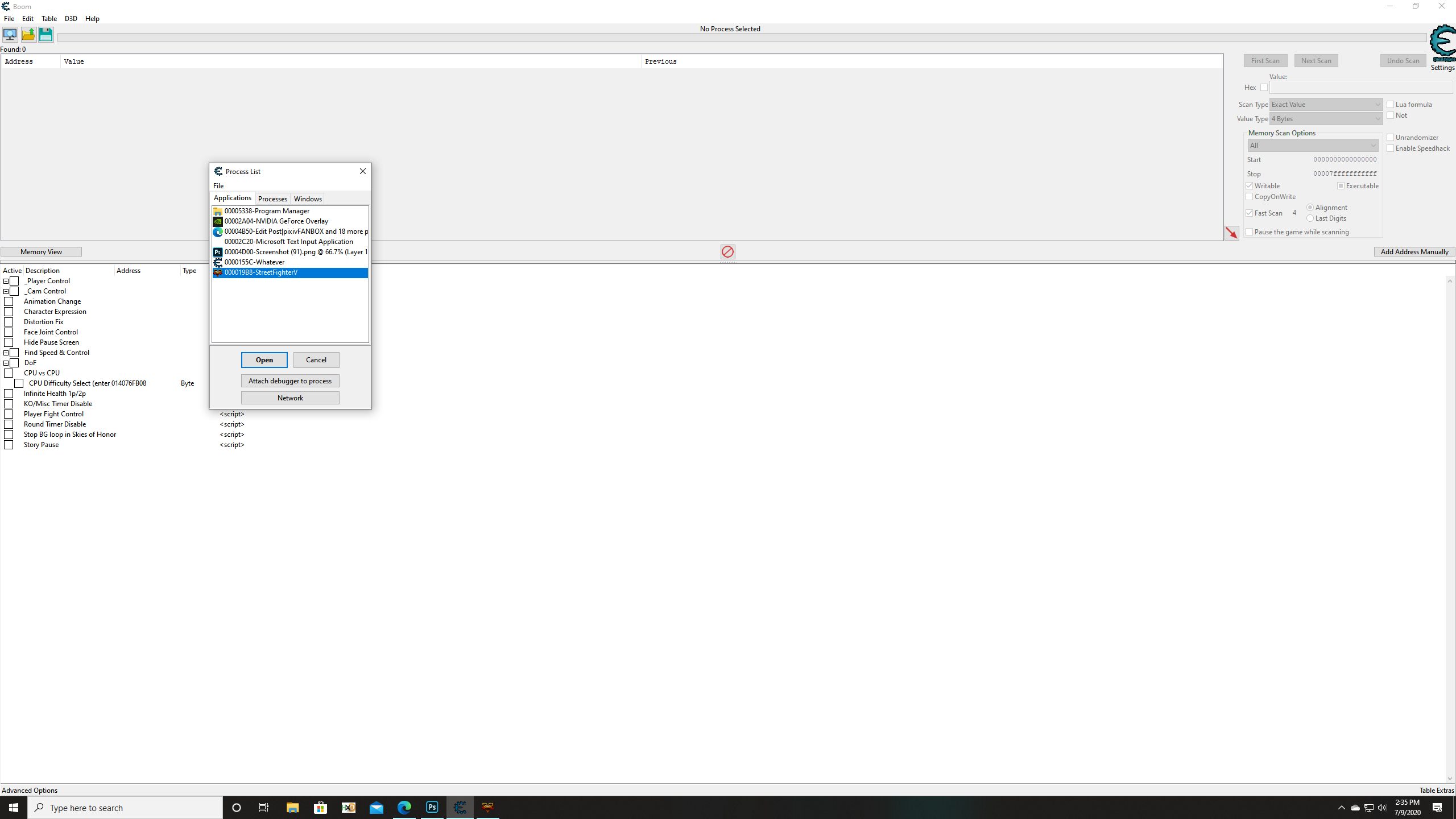
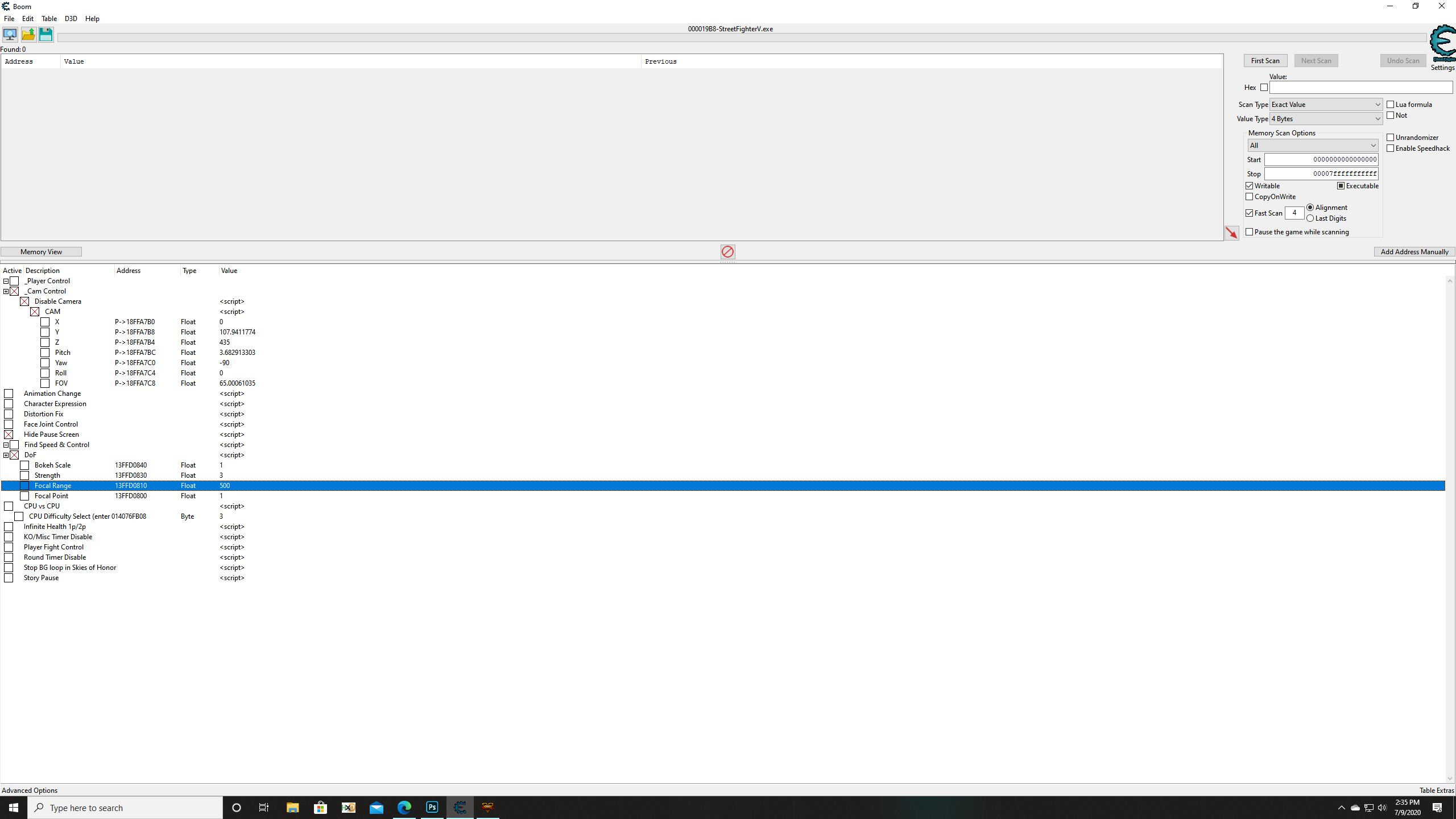
15) Go back in the running camera script window and select StreetFighterV as active process then click open.
16) Now check the three check boxes marked with red crosses.
17) Double click on the value of Focal Range and experiment with desired values, I usually go with 350 for my screenshots to create that depth of field look but you can try different values.
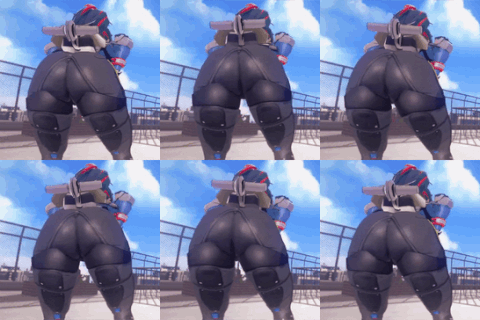
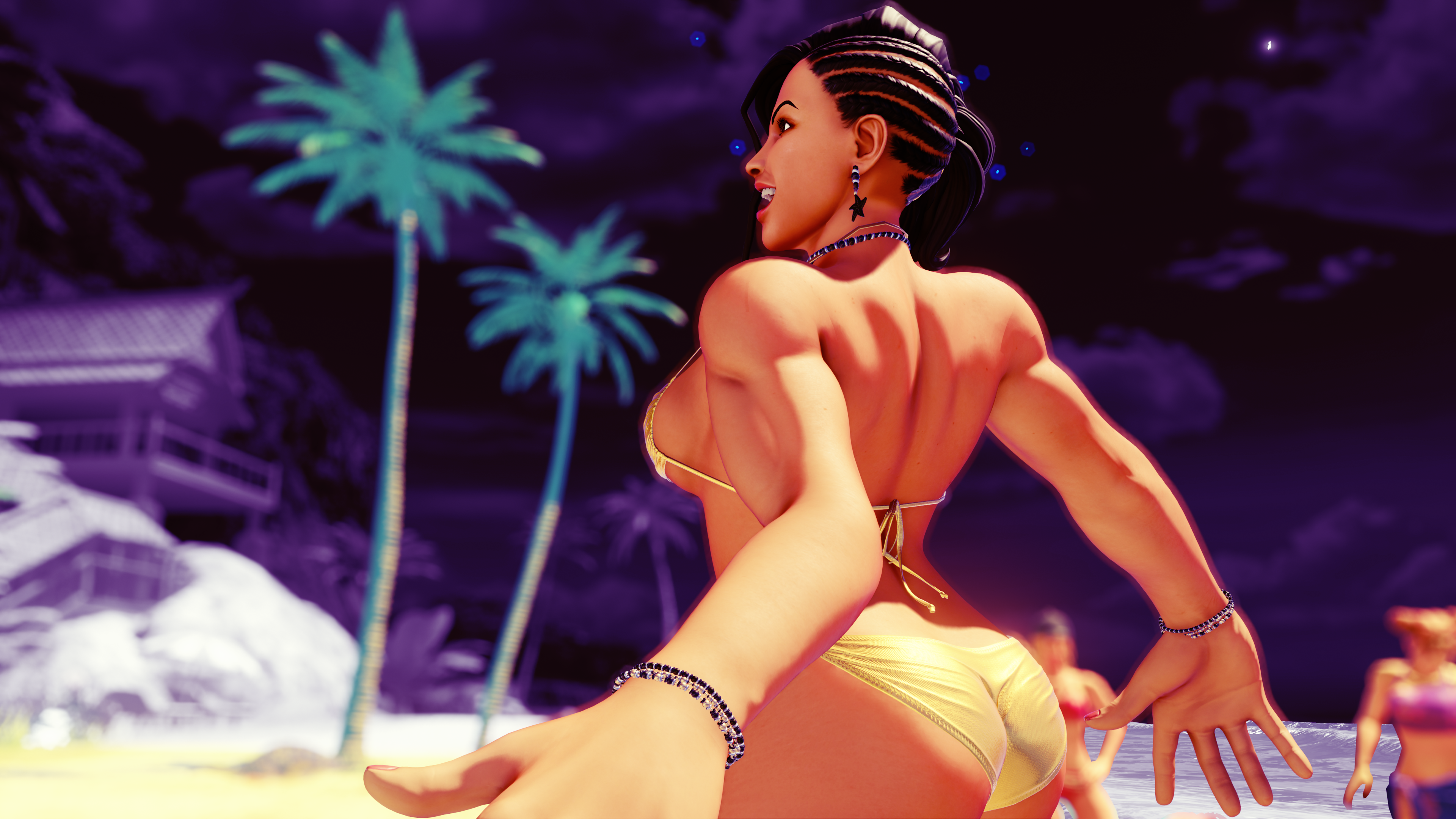
18) Now go back in game and use numpad to control the camera. It should work now, 8/4/6/2 to control the directions and 5 or 0 to zoom in or out. There are more controls but first experiment with these and get comfortable with the camera control. You can have screenshots like this with just these controls.
Enjoy some photography!
NOTE: Credit goes to Nepafu for camera script (https://twitter.com/somberness). Sleepy Scrub (https://twitter.com/sleepy_scrub) and ThatModderDude (https://twitter.com/ThatModderDude) for assitance in understanding and resolving few issues after recent SFV update.
なかもとくん
2022-12-28 07:51:37 +0000 UTCBrutalAce
2022-12-28 01:36:01 +0000 UTCなかもとくん
2022-12-27 16:48:45 +0000 UTCBrutalAce
2020-10-08 09:24:08 +0000 UTCBrutalAce
2020-07-12 03:46:41 +0000 UTCBrutalAce
2020-07-12 03:45:33 +0000 UTCBrutalAce
2020-07-12 03:45:21 +0000 UTCBrutalAce
2020-07-12 03:45:10 +0000 UTCBrutalAce
2020-07-12 03:44:22 +0000 UTCMiyake
2020-07-09 21:47:04 +0000 UTCBrutalAce
2020-07-09 19:26:17 +0000 UTC