Here you can learn about what's possible with the new menu mods and how to control them! If you have questions, they might be answered here. But in case you still have questions or problems, feel free to comment or reach out to me of course <3
This post will go over:
1. Requirements (Important!)
2. Features (Tooltips, Color Customization, Presets, etc.)
3. Controls (Mouse, Keyboard, Controller)
4. Troubleshooting
5. Known Issues
Feel free to skip to the sections that are most relevant to you.
This Mod was designed for XXMI! (But GIMI supported!)
link: https://github.com/SpectrumQT/XXMI-Installer/releases
The Mod might only partially load on GIMI as is. However, you can fix it by setting "gimi_compatibility" to 1 inside the GIMI_compatibility.ini (it SHOULD be set to 0 if you play on XXMI). But note that there are some issues on GIMI, like glitches in the Character/Party Setup Menu and HP form-presets (temporarily) not working.
Requires TexFX, ORFix and Tracking
XXMI will automatically handle this. But if you are not using XXMI, please ensure these three libraries are up to date for glow, outlines and form-presets to function properly.
texfx: https://github.com/SinsOfSeven/TexFx/releases
orfix: https://github.com/leotorrez/LeoTools/blob/main/releases/ORFix.ini
tracking: https://github.com/lupomikti/GI-Status-Tracker/blob/main/Mods/BufferValues/Tracking.ini
put both orfix and tracking in the Buffervalues folder and put texfx like other mods in your mods folder.
CURRENTLY NOT COMPATIBLE WITH LINUX SYSTEMS!
(only the Mega Menu mods which use dynamic textures/color wheels aren't compatible with linux)
TOOLTIPS:
Hover over buttons and a cute loli will appear, teaching you about its functionality!
(Can be disabled by clicking the "?" symbol)
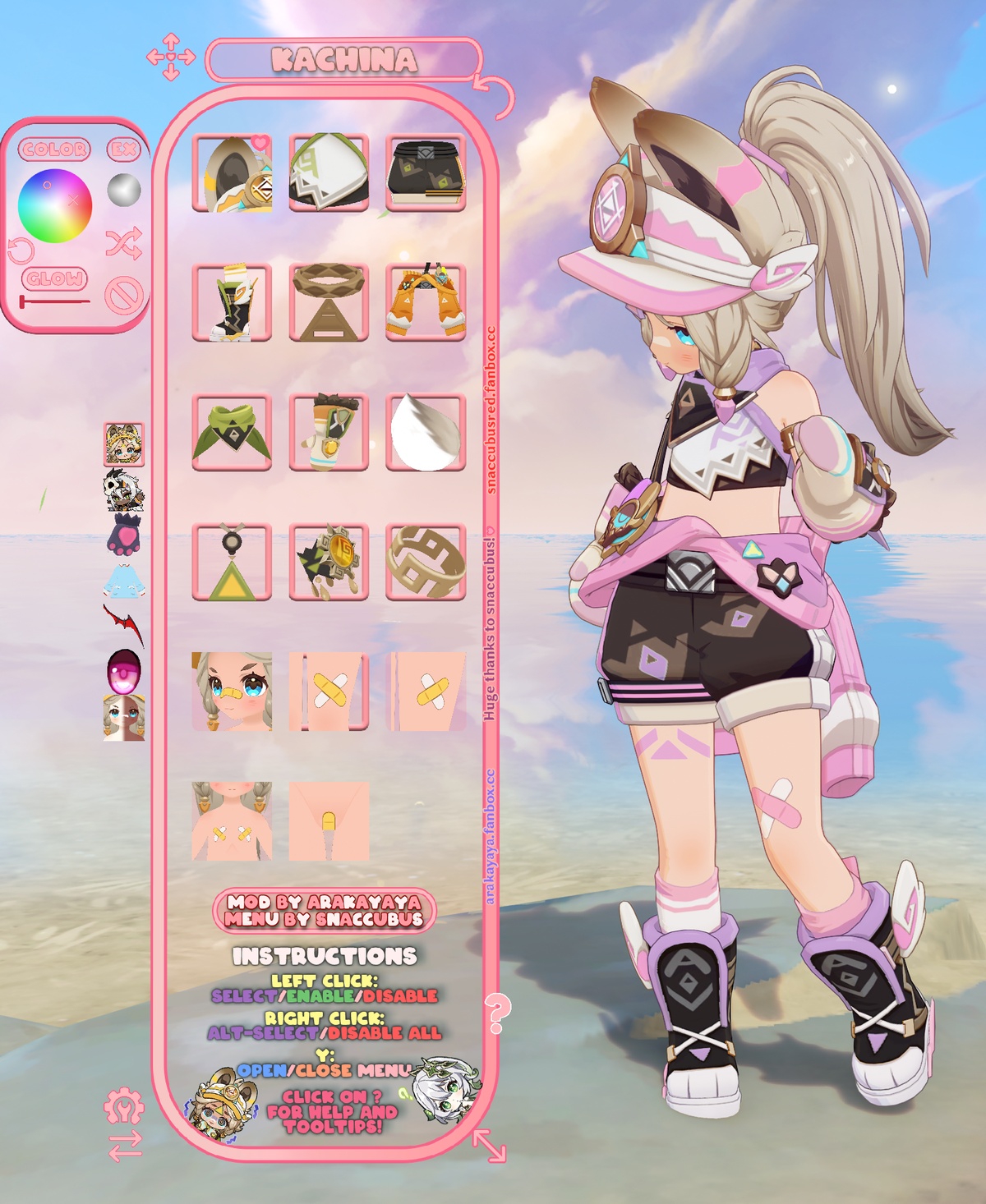
SIDE PANEL:
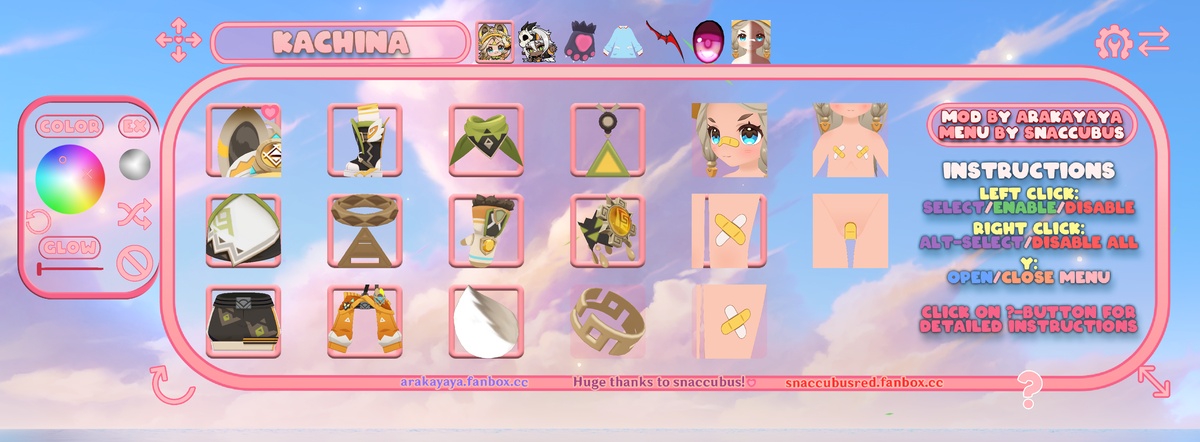
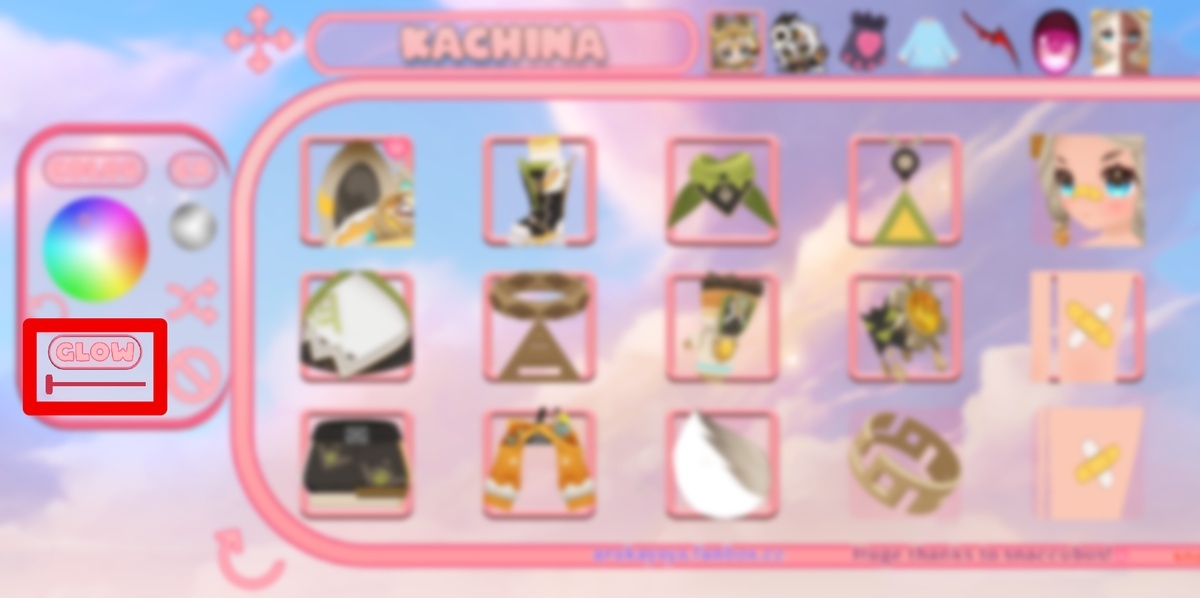
In the side panel on the left, you will find the color wheel, glow slider and a bunch of buttons!
--- Color Wheel ---
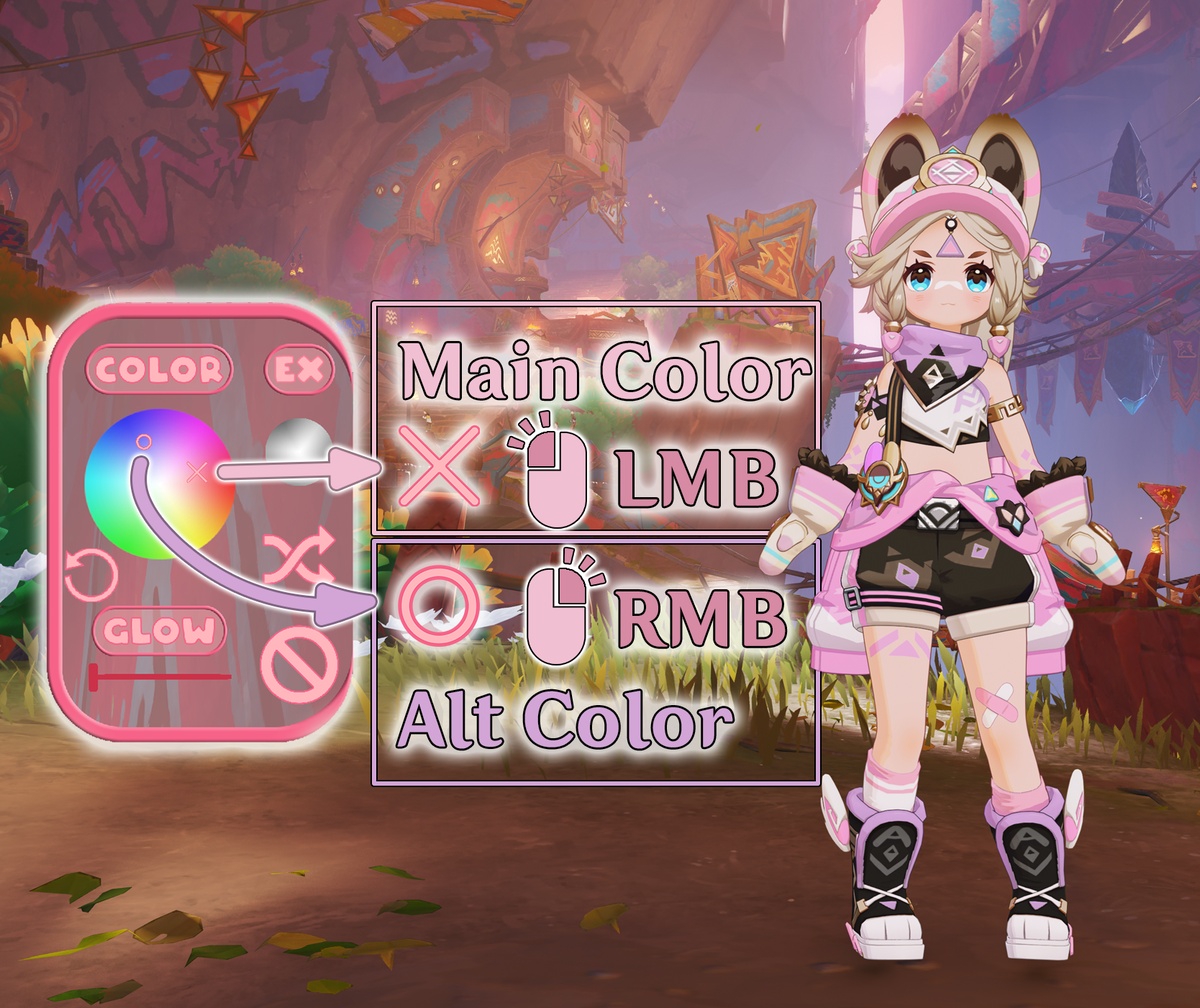
Each page lets you change two colors: a Main Color and an Alt Color.
Click and drag with the left mouse button to change the main color of the page, or use the right mouse button for the alt color. There’s a cross and a circle icon in the color wheel to indicate the main and alt colors respectively.
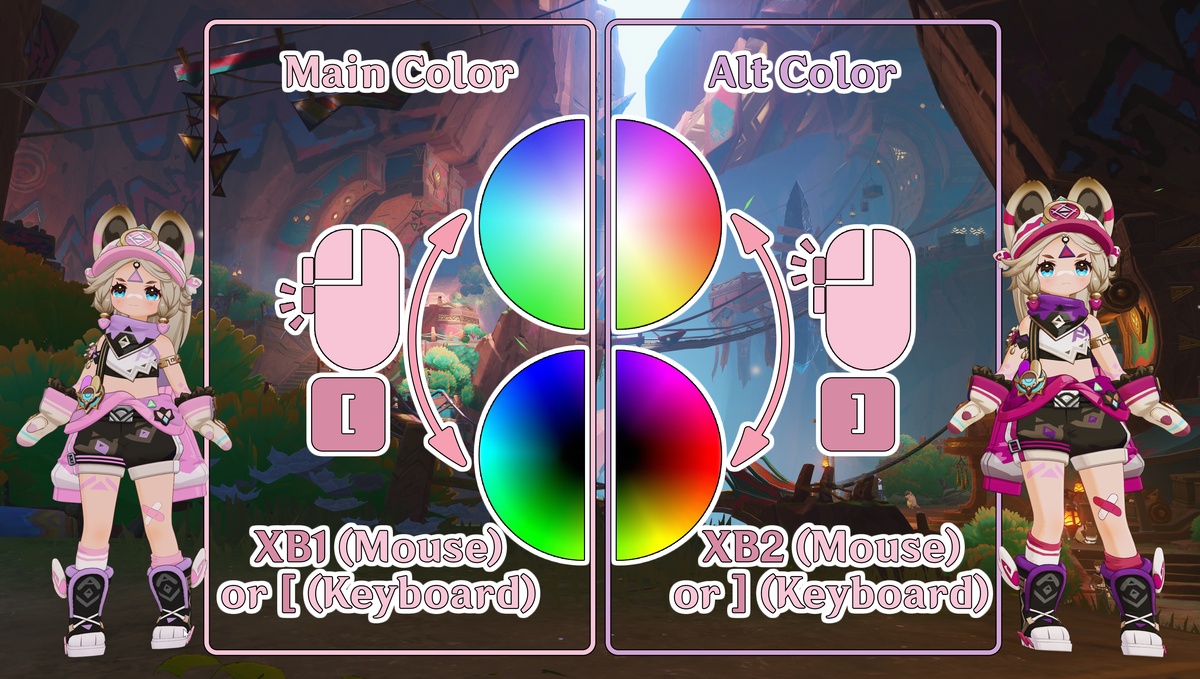
For bright/pastel colors, there's a color wheel that blends with white - and for darker colors, you have one that blends with black!
You can toggle these color modes for the main and alt colors individually by clicking either XButton1 or XButton2 (the side buttons on your mouse). Alternatively, you can use [ and ] on your keyboard as well.
(Note: There’s still no button for it in the menu UI. It’ll be added at a later point)
(Also note there might be some parts that use an entirely different color mode where this toggle doesn’t work - e.g. Eyes' Main Color)
--- Grayscale Button ---
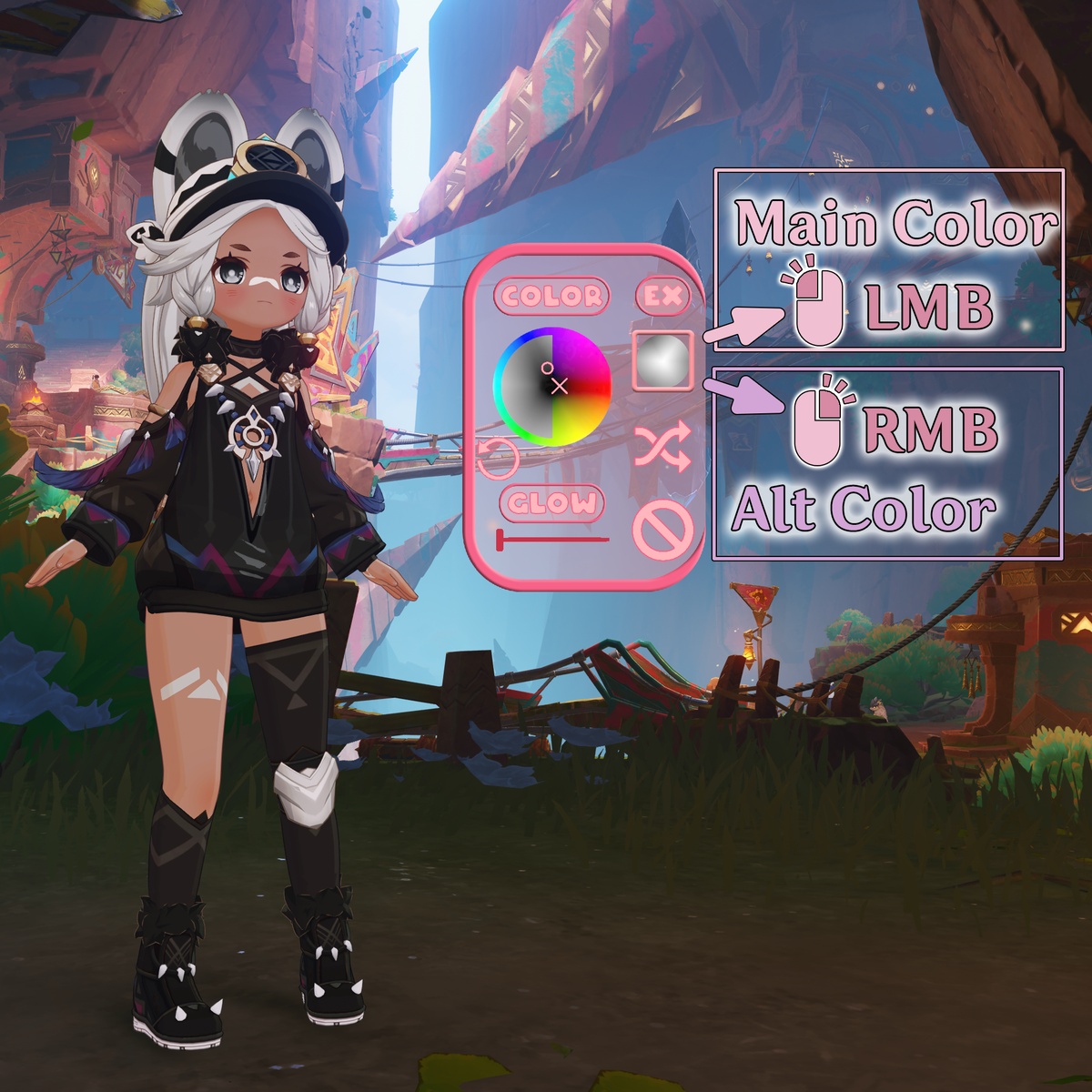
Pure black and white colors can be achieved too by using the grayscale button!
Just like before, left click controls the main color and right click the alt color.
--- Glow Slider ---
You can set the glow and its intensity per page.
The reset button between the Color Wheel and the glow slider will reset both to their default values for that page.
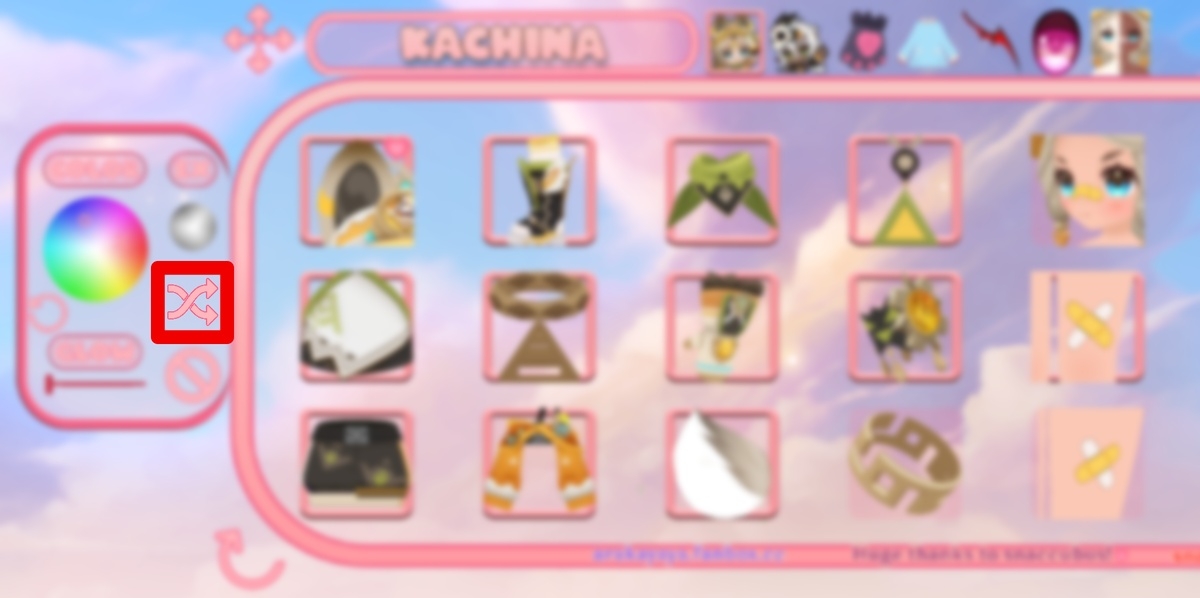
--- Randomizer ---
Left Mouse Button: Randomly selects parts of the current page
Right Mouse Button: Randomly selects parts across all pages
(Note: There’s currently a bug with the randomizer. Details in the Known Issues section)
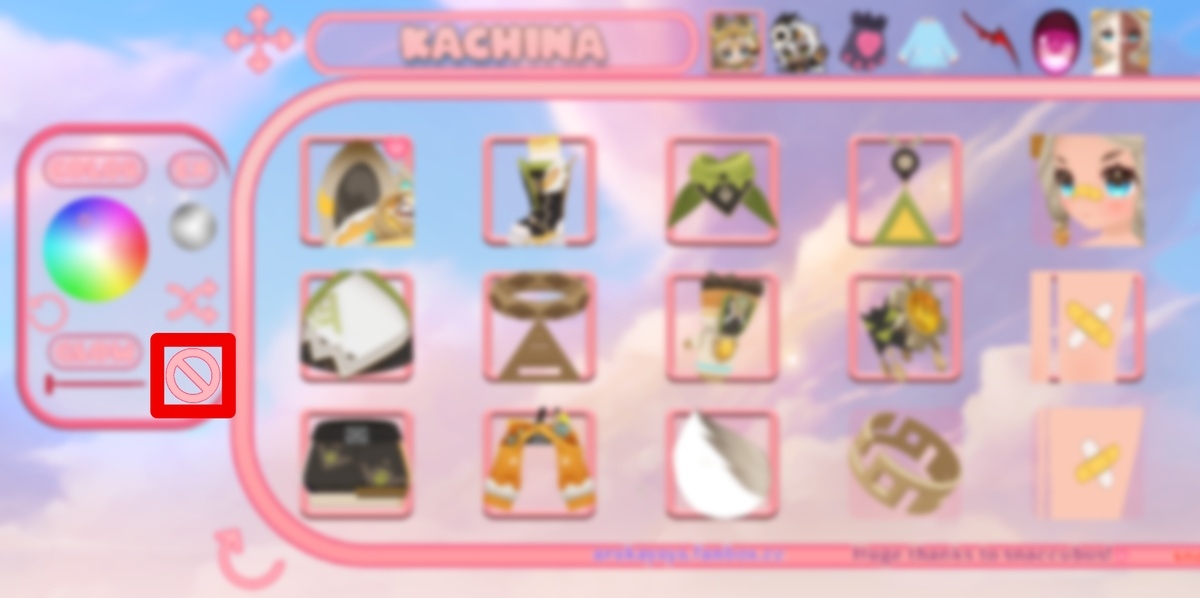
--- Clear ---
Left Mouse Button: Clears all parts of the current page
Right Mouse Button: Clears all parts across all pages
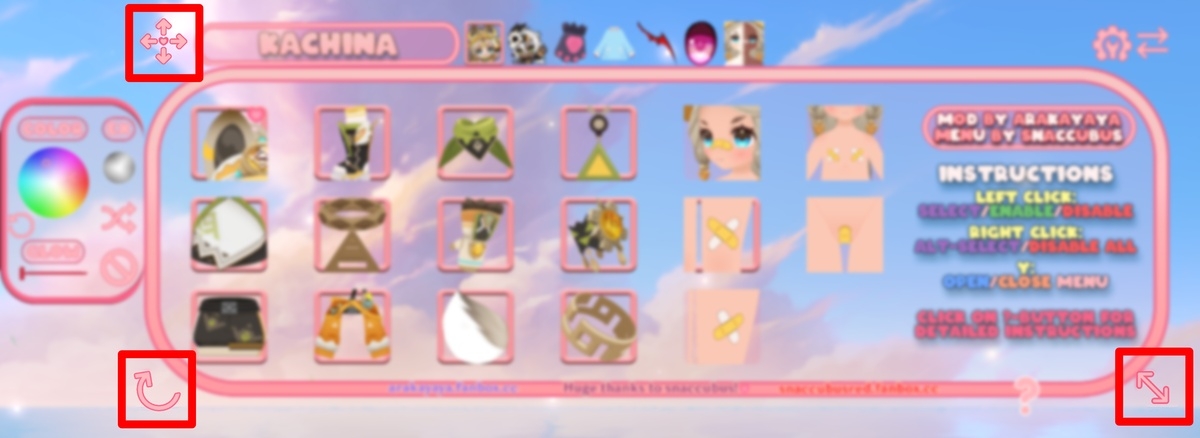
MENU TRANSFORM:
Move, Resize, and Rotate (horizontally and vertically) the menu!
Sorting by Part Location:
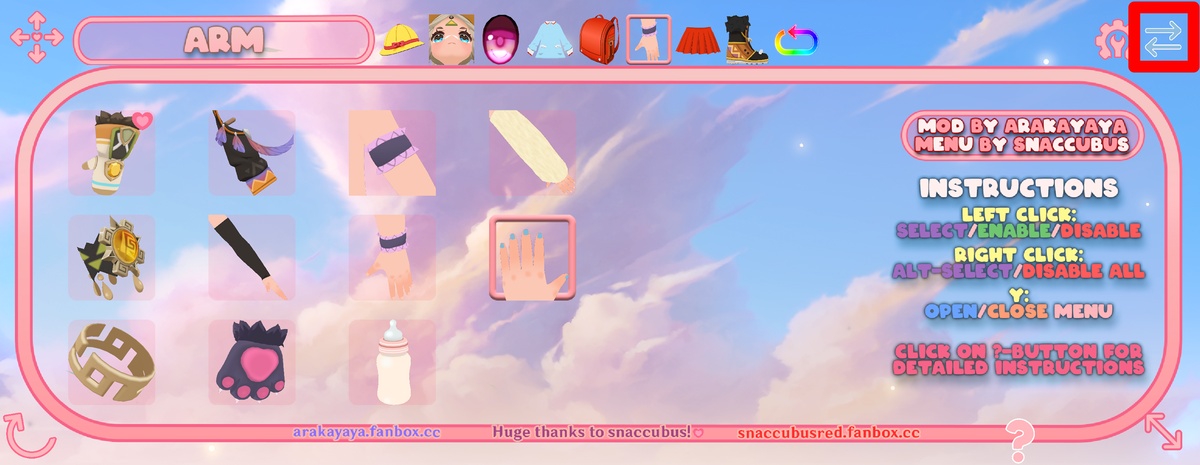
Another cool thing you can do is sort the parts based on their location. Click on the icon in the top-right corner to enter a different menu mode, where the pages are labeled with body part names and contain their corresponding parts!
PRESETS:
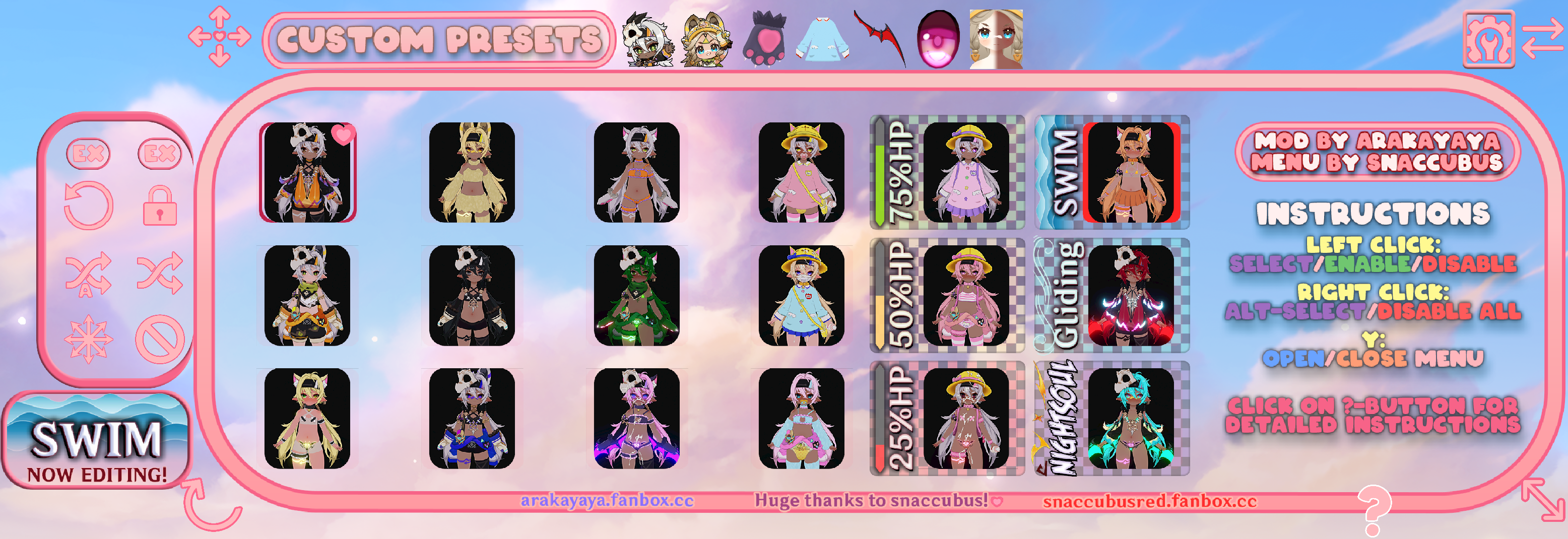
The new menu allows you to save presets - meaning you have button slots you can fill with your favorite combinations of parts, colors, and glow! Click the icon at the top-right to access the custom presets page.
These 18 slots already come filled with presets I liked (sorry for the pink bias), but of course, you can overwrite them with your own creations :3
(If you want to, you can even change the icons by replacing the PNGs in the presets folder with screenshots of your own presets. I also included some alternative icons you can use with numbers, letters and signs on it!)
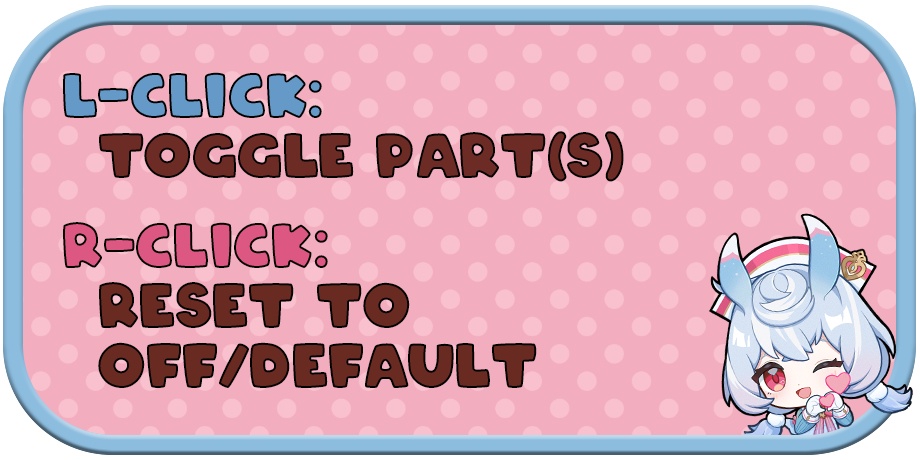
Left-clicking a preset will select it as usual, while right-clicking will reset it to the default preset I set up.
--- Form Presets ---
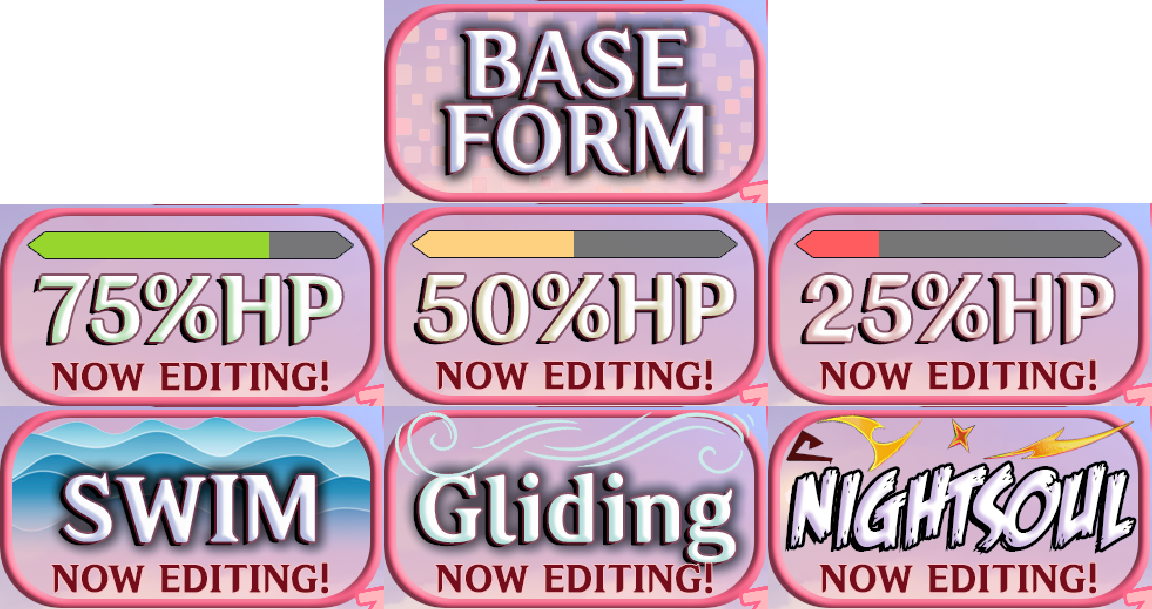
Presets marked by a label (see last 6 presets in the image above) are special presets that will automatically trigger upon certain criteria.
(Nightsoul Blessing state; Gliding; Swimming/Diving; Hp below [25%; 50%; 75%] )
Important: You can still edit these presets even if the criteria isn't fullfilled at the moment, meaning there won't be any visual changes when clicking buttons. There will be an indicator below the side panel to make it clear what you are currently editing!
By pressing on a form preset again after selecting it, you can disable it. (In case you don't want it to automatically switch to e.g. the Gliding Preset while gliding)
The side panel for the preset page is replaced by a different one.
Let’s quickly go over what the buttons do:
Reset Presets:
Resets all presets to default. Don’t click this if you want to keep the presets you've created.
Lock presets:
When enabled, this prevents changes from being saved to the presets.
Randomize Button:
Randomly selects one of the presets.
Auto Randomize Button:
Randomly selects a preset on every load.
Chaos Mode:
Disables checks for overlapping / clipping parts.
This might be interesting for people who don’t mind some clipping and still want to see combinations I set as mutually exclusive.
Clear Button:
Clears all parts of the currently selected preset—basically works like right-clicking the clear button on the normal theme pages.
The menu can be opened by pressing the icon on the character screen, pressing y on the keyboard, or pressing xbox guide button. The character must be on-screen for the menu to appear.
There are 3 control methods:
1) Mouse (recommended): Use left and right click to control the menu, and click+drag to control sliders and resize
2) Keyboard: Use arrow keys to move, u key as left click, and i key as right click. The pink heart indicates current location on menu
3) Controller: Use dpad to navigate, L3 for left click and R3 for right click
(NOTE: Only works with XInput controllers such as XBOX controllers, DInput controllers will not work due to 3dmigoto limitations. If using PS controller, consider using DS4 or other software to emulate)
On first appearance, the tool tips explaining what buttons do on hover will be active; press "?" on the menu to toggle it on and off
If you want to change the keys for controlling the menu, do so in the Menu.ini, not Character.ini! Just search for "keys" to jump to the keys section.
The menu isn't showing up!
-> Character must be on-screen when y is pressed for the menu to appear
-> if it still doesn't work, try reloading with F10
I can't control the menu!
-> Press alt to show the cursor to control the menu on the overworld. Alternatively, use keyboard + u/i keys (left/right click)
Multiple menus are showing at once/the wrong menu is showing!
-> When the character is currently active on the overworld, they are considered "on-screen" even if you’re in a menu and they aren’t visible (they’re still rendering in the background).
Swap to another character on the overworld before opening the menu.
The model is only half-showing up/most of the buttons don't work!
-> If you are using GIMI, ensure you have set gimi_compatibility to 1 inside "GIMI_compatibility.ini".
-> Swap to another character and back (might need to repeat a couple of times)
Textures are all black!
-> Press F10 to reload
My preset changes aren't being saved!
-> Press F10 to force-save changes (XXMI should auto-save them every 60 seconds by default)
There is a pause/stutter when swapping to the character, and when clicking on presets and certain buttons - this is the calculation of the textures and parts. It should only happen once per preset/button after an F10 refresh or game restart
When using the randomize button, it lets through exclusions set by me, meaning you might see combinations that should be mutually exclusive - causing a lot of clipping.
The menu was designed for a 16:9 aspect ratio. It will continue to work properly in other aspect ratios, but may look squished/stretched
Some people may experience all-black textures on first load - Pressing F10 should fix the issue; otherwise, if using XXMI set an additional delay in d3dx ini via `config_initialization_delay` (e.g. set config_initialization_delay=10 instead of =0)
If you are a Linux user, please read 1. Requirements if you haven't already ;4;
Some parts clip! Sorry about that there are a LOT of part combinations I need to test, and some clipping is inevitable. I tried my best to minimize it
There are some presets that will set the location of the cross and circle indicating main/alt color on the color wheel wrongly. The color on the model should be correct, only the location of the indicators are wrong. Once you click into the color wheel, everything should work as expected again and the offset should be gone!
when playing with gimi_compatibility set to 1, there will be glitches when going into the character or team setup menu while the character is on field in the background
____________________________________________________________________
If you still experience issues, feel free to comment below or hit me up on discord or my other socials
Socials (NSFW)
Fanbox | Pixiv | Twitter | Patreon | Subscribestar
Discord: arakayaya

















![[Esc] reality](https://xaiju.com/istorage/37993.jpg)