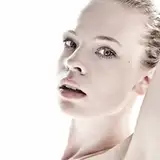
Hello everyone! I've got another mini-game puzzle script for you all. 😁
This time it's a rotation puzzle where you rotate discs to reveal a complete image. This one uses a bit of math, as we have to calculate angles to make the rotation work correctly. Please read through this post which goes into how it works.
I do actually have another rotation puzzle script already you may or may not remember or know about. It's a safe dial mini-game that I made when I still was making video tutorials on Youtube.
The calculations for that is slightly different than this one where the dial will rotate even if you're not orbiting the dial with your mouse as your dragging. So just moving right and left in a straight line still makes the dial rotate. But for this one I wanted the discs to rotate only when the mouse actually "orbits" around the discs instead which is more realistic.
Also the code for this is a lot less than the safe dial one as we're not using the Sprite system to detect when the mouse is down on the discs, but rather drags and transforms instead.
Here I'll explain the gist of the script. I won't go into all the details since some of this you should be able to work out by studying the code.
To make the images be able to be rotated by pressing the mouse down, I decided to work with the Drag & Drop system in Ren'Py instead of the Sprite system, as a drag can detect when the mouse is down on it and when the mouse is released. I chose it instead of the Sprite system together with a transform, as it requires less code overall to achieve what we want.
If you have no previous experience using the drag and drop system in Ren'Py, I highly suggest you watch my Drag & Drop tutorial series on Youtube.

Above is the draggroup used inside the main mini-game screen called "rotate_discs_puzzle". Here I use a loop to go through a dictionary (puzzle_pieces) that holds the filename of each disc to be added to the puzzle, as well as their current rotations. Inside the loop we then add an image using string interpolation to swap out %s for whatever the piece variable is at the current loop iteration.
We also name each drag the same as the filename, so we can identify them later on, as well as give the image an id for use in the transform later on.
The transform responsible for rotating each piece is applied to the image inside the drag, not the drag itself.

As you can see, each entry in the dictionary starts with the filename of a piece followed by it's current rotation, which is per default 0.
The problem with drags is of course that they're supposed to be dragged around. So one has to do a little bit of educated thinking here to figure out how to stop the drag from actually dragging, since we only want to use it for detecting mouse press and release on it.
It's unfortunately not as simple as saying "draggable False" as this will cause the drag's dragging and dragged properties (which we need to detect mouse down and release) to no longer function, as they're supposed to work only when the drag is able to be dragged around.
To circumvent this, I made use of the snap() function available to drags to snap it back to its original position as soon as it starts to be dragged. This is done by setting the dragging property to a function (select_piece) that we can then use to store the name of the drag in a variable (for use in the transform) and then snap the drag to it's start position, which is stored in the drag's start_x and start_y attributes.

The rotation of each piece, as I mentioned before, works by applying a transform (piece_transform) to the image inside each drag. The transform then points to a function where we do all the logic.

Transform functions will run as often as you set it to. This is done by adding a return statement at the bottom of the function together with a value. If 0, then runs every tick of the game, which is what this script does.
The first thing we do inside the function is to check with an if statement if there's any 0 values in the dictionary. If there is, then we know that not all pieces have a random rotation just yet.

We also check if puzzle_new_game variable is True. If it is, then we can allow the code within the if statement to run to set a new rotation value in the dictionary instead of 0. We use both conditions because we only want this to run once when the mini-game starts, and not again after the player has rotated a piece to its correct rotation.
The rotation values are picked from a list of random rotations called "random_angles" and put into a new list by using a loop. We can then use this new list to pick a random rotation value from, and then delete it from the list after we have applied it to the transform. That way, there's no chance that a value will be picked twice.
Once all pieces have an initial random rotation, the elif statement below will run as it checks if 0 is not in puzzle_pieces and if puzzle_new_game is True. Inside here we set the variable to False, so the next elif statement below can run in the next tick.
This elif statement then runs code to rotate the piece the player has their mouse button down on.
We identify if the current transform displayable of this function is the same as the id of the currently selected drag's image using the if statement shown above (selected_piece == t.child.id). If so, then we have the correct image to rotate.

Now to actually rotate the image according to the player's mouse movement, we need to:
First get the initial mouse coordinates when the player started the drag then
calculate the angle of this coordinate to the center of the image
This will give us the initial angle. We calculate this if the variable mouse_initial_angle is equal to None. Then inside the if statement, we set the variable to the current angle of the mouse. This way, the if statement will only run once after rotation has begun.
The angle is calculated by using the math function atan2. This will give us the angle in radians which we then convert to degrees by using math.degrees().
Then as the mouse moves, we need to calculate what the new angle is from the center to the new mouse coordinates.


As you can see, we do the same thing in this else statement as in the previous if statement to get the current angle of the mouse. The difference between the initial angle and this current angle is how much we should rotate the image by.
We clamp this value to increments of 5 to make it a bit easier/less finicky to get the images to align perfectly.
That's the basics of this script. The rest you can read in the actual script file as it contains a bunch of comments explaining things as well. The mini-game script file is called rotate_discs_puzzle.rpy inside the project folder.
You can download the project files below. If you encounter bugs, have questions or feedback about the script, feel free to leave a comment down below. 😁
Pytem
2025-08-28 17:42:33 +0000 UTCJodi Chamberlain
2025-08-14 19:13:34 +0000 UTC