The password has been sent by email.
Another stunning character has joined the lineup. I know I’m a bit late, but only because I worked tirelessly to fine-tune every expression
Another stunning character has joined the lineup. I know I’m a bit late, but only because I worked tirelessly to fine-tune every expression
Another stunning character has joined the lineup. I know I’m a bit late, but only because I worked tirelessly to fine-tune every expression
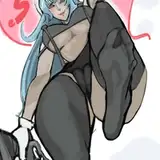
Another stunning character has joined the lineup. I know I’m a bit late, but only because I worked tirelessly to fine-tune every expression to sync seamlessly with official MMD animations. Every inch of her design reflects care and precision, and I think you’ll appreciate the level of detail throughout. From polished textures to versatile customization options and practically full expressions support in MMD, she’s built to shine in your lineup!
You’ll find a variety of optional textures inside the tex -- variations folders, giving you plenty of customization freedom.
She comes with two interchangeable body types—just like some of my previous models: one with standard clothing, and another with an exposed version. Accessories and clothing parts are compatible with both body types, although anything involving the chest area will differ slightly due to the structural differences between them.
DoA Style Ready Pose: In XPS format with all bones renamed.
MMD Ready Dance Pose: Prepped for MMD dancing with hair and boobs physics! (Optional Clothes in other morphs)
FBX and Blender 3.6.9 LTS: Included in T pose!
Optional Parts: In XPS, use Ctrl + A . (Shapekeys converted to Optional Faces). If you want her with face blush drag the texture in the "tex -- blush" over an XPS window or replace the face texture in the "tex" folder (keep a backup) In XPS don't set the shadow depth more than 10 or you will see ugly darker parts on her face. Both optional faces and bones can be used for multiple expressions.
Optional Parts in MMD: The material morphs are located in the "Other" group. "Body Switch" allows you to toggle between two body types—the default version with clothes, and the exposed clothed version or nude version. Accesories are compatible with both bodies.
To hide all the default clothes at once, use "Clothes All H"
To hide only specific parts of the default clothes, use individual morphs like "Cl.Top" to hide the Top, for example.
The exposed clothes version can be displayed easily:
First, use "Cl.All H" to hide the default clothes.
Then, apply "Cl.Ex ALL S" to reveal the exposed clothes version in two steps.
If you want to display only certain parts of the exposed clothes, use morphs that include "ex" (exposed) in the name. For example:
Use "cl.ex Top s" to show the exposed Top.
The "h" or "s" at the end of the morph names indicate their function:
"h" means the morph hides the clothing.
"s" means the morph shows the clothing.
All individual morphs for default clothes are designed to hide their respective items ("h" at the end), while individual morphs for exposed clothes are used to show them ("s" at the end).
Credits: Background by vecteezy.com
Animanpower
2025-08-07 01:21:59 +0000 UTCAmanda Sev
2025-08-06 22:40:02 +0000 UTC