Here is a description of moving the blender's viewpoint
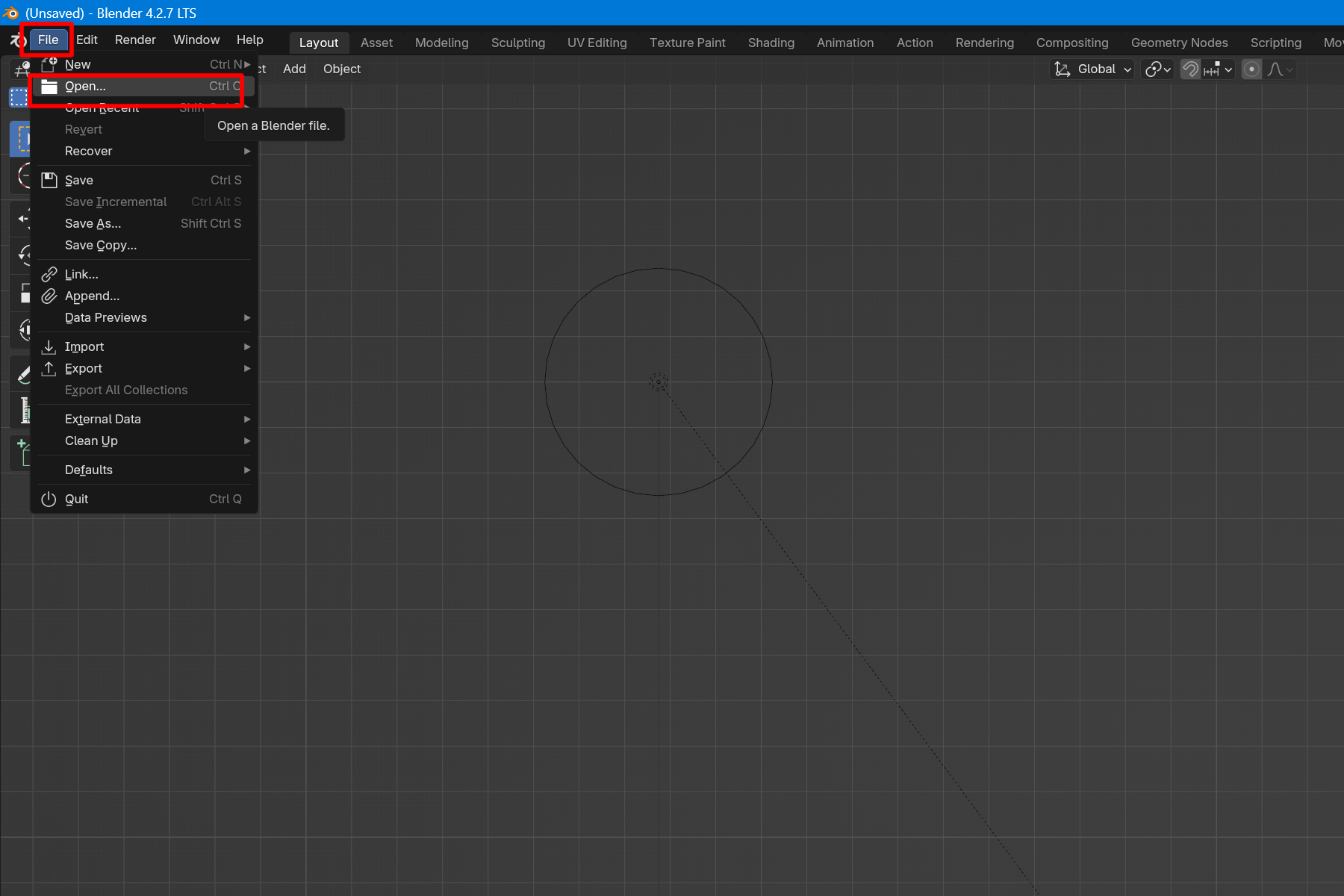
Open the downloaded file “Shiranui_v1_250308”.
Click Open from File.
File > Open
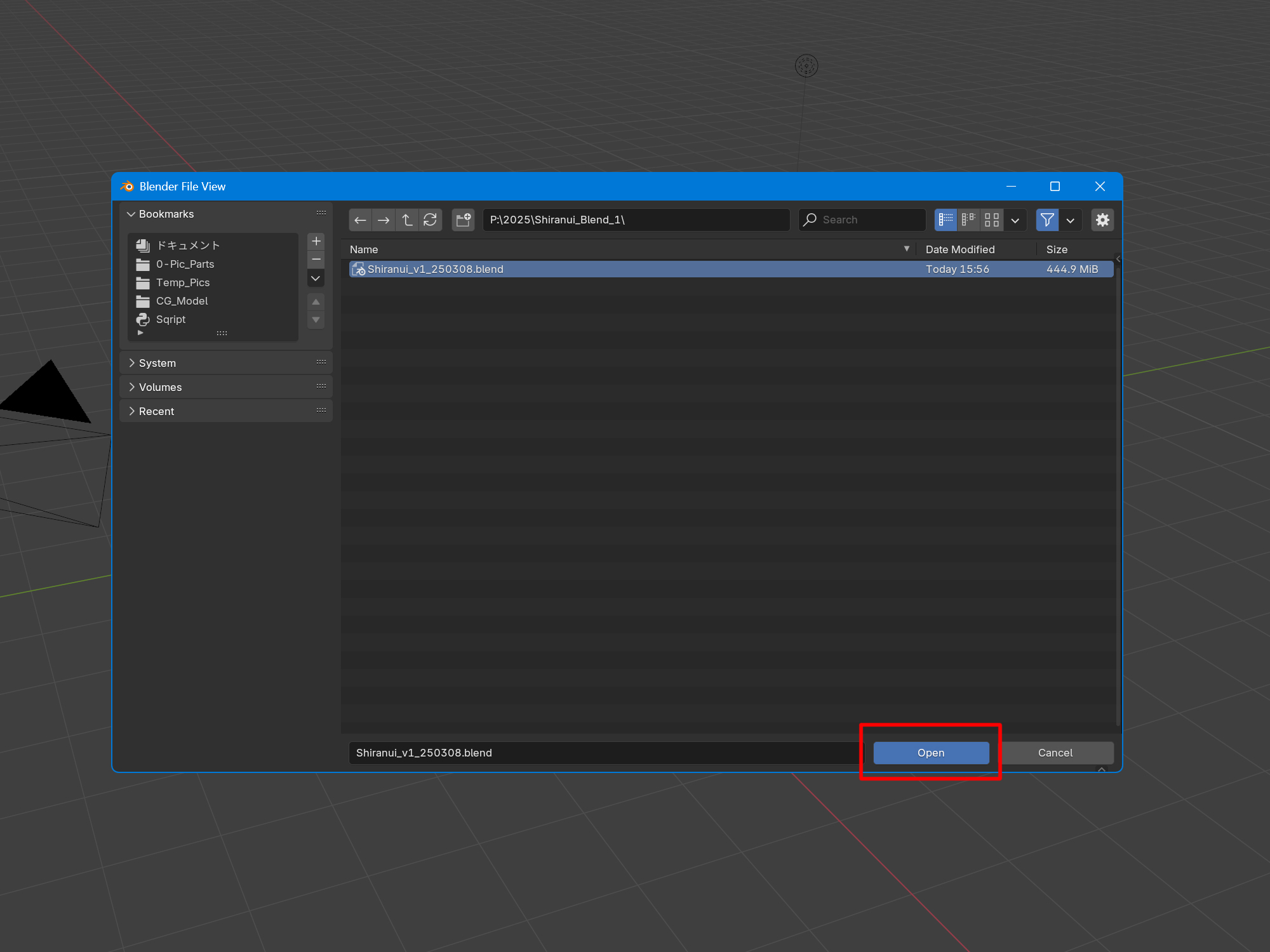
A File View window will open.
Select the downloaded file.
Click Open to open the file.
Select the downloaded file > Open
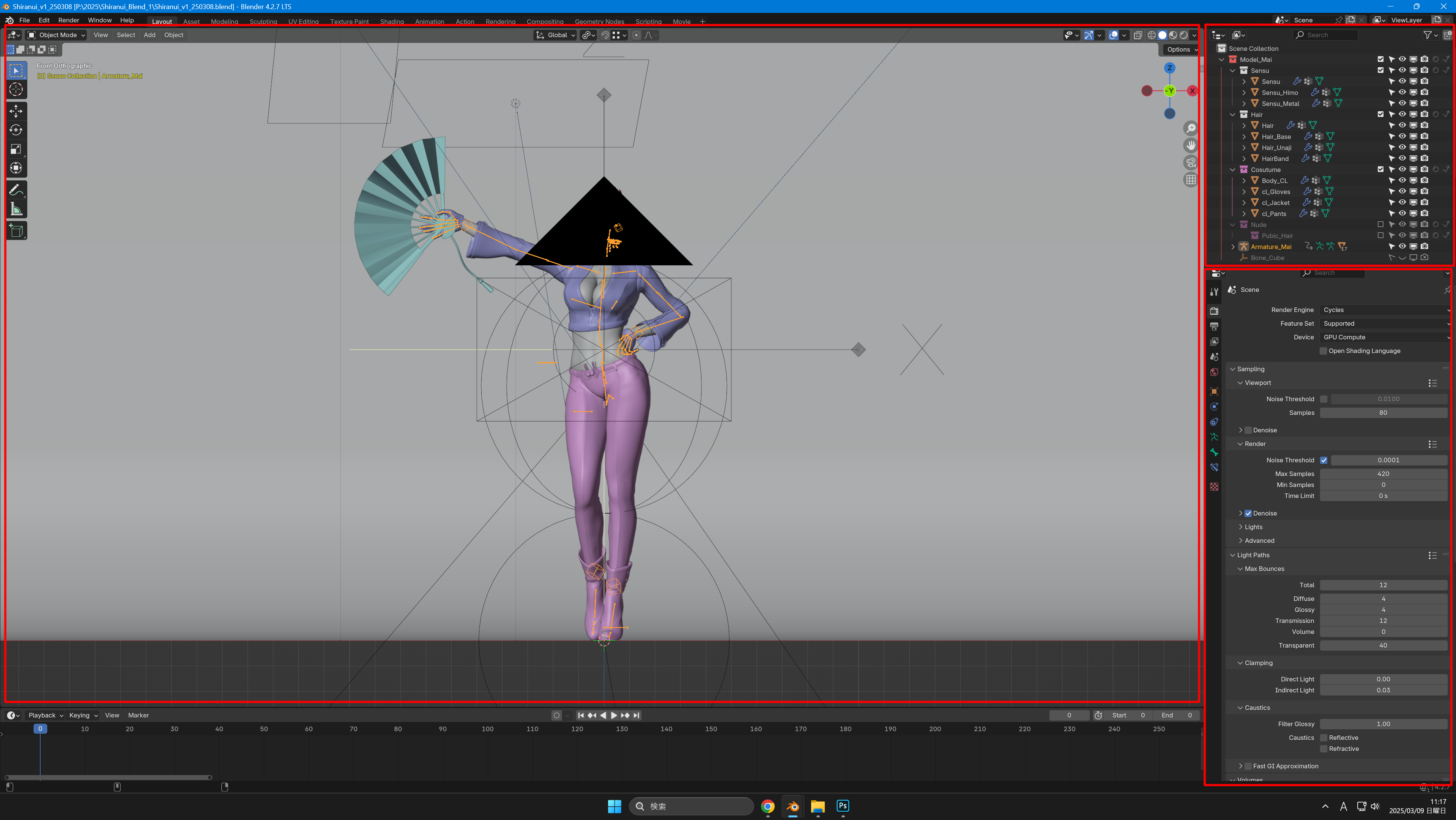
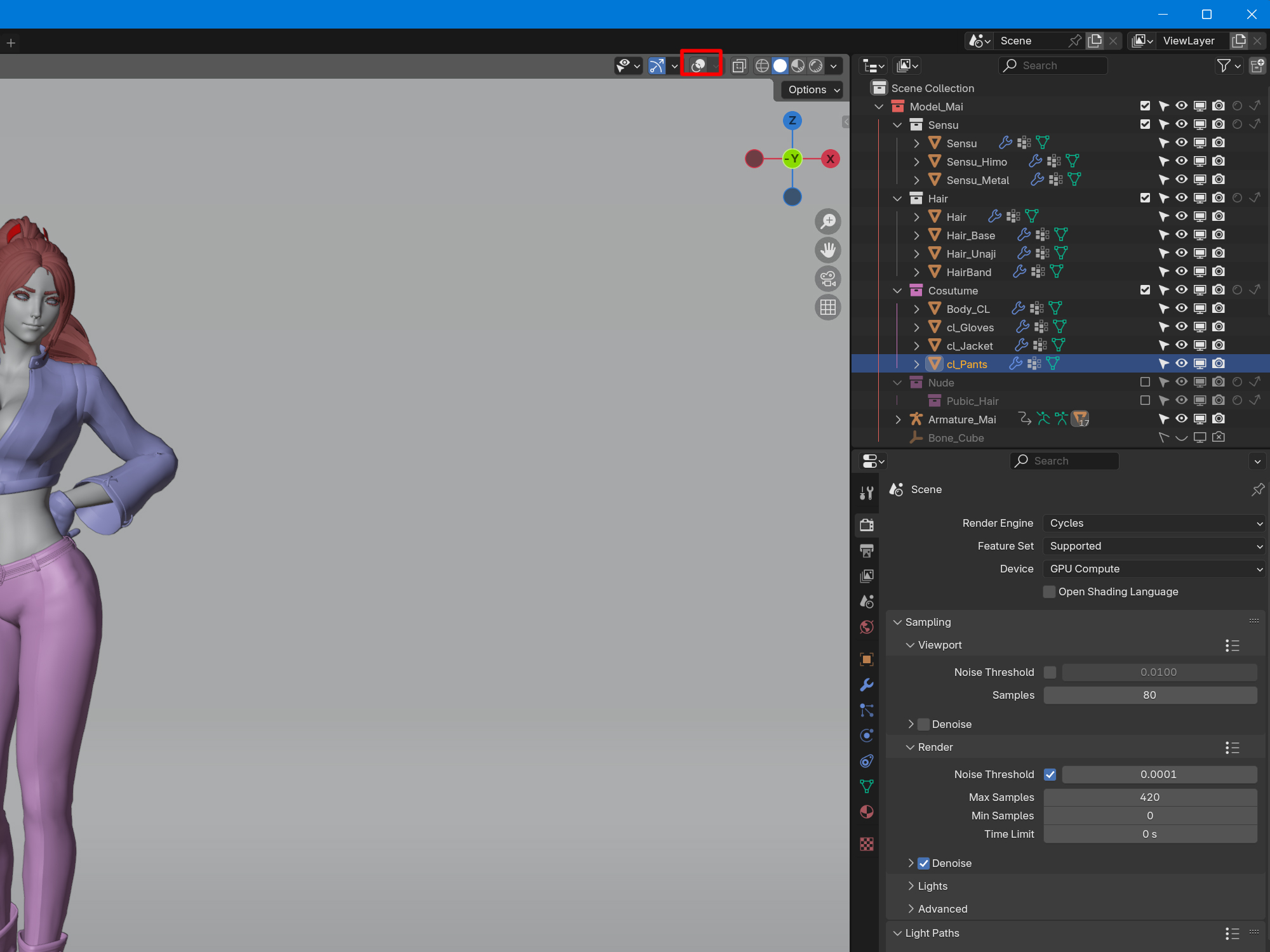
The operation screen consists of three windows.
The large window in the center of the screen is the 3D View window.
This is the main window for visually editing and checking.
The upper right window is the outliner.
This window is used to select models, cameras, lights, etc., and to manage display switching, etc.
The lower right window is the Properties window.
Various settings are made here.
This section describes viewport operations in the 3D View window.
Use the mouse and keyboard to move the viewport.
Move the viewpoint, shift + press (hold down) the mouse wheel
Rotate the viewpoint, press mouse wheel
Zoom in/out, rotate mouse wheel or ctrl + press mouse wheel
Toggle camera view, 0
(Switch between camera and normal viewpoints)
Switch projection method, 5
(toggles between perspective and parallel projection)
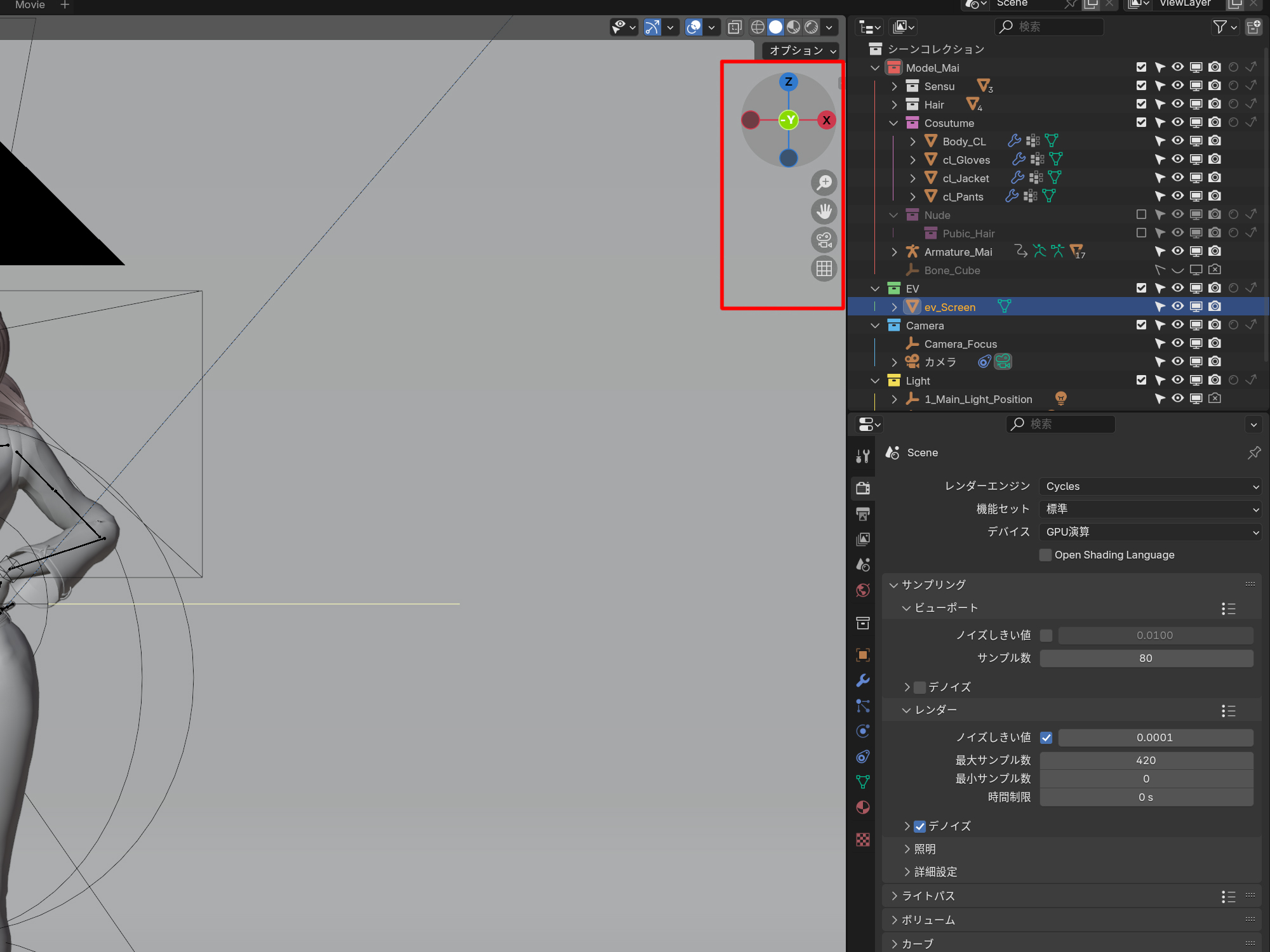
If you do not have a mouse wheel, you can also use the upper right corner of the 3D viewer.
Press (hold down) the respective symbol and move the mouse.
XYZ: cross, rotate
Magnifying glass marked +, zoom in/out
Hand symbol, move the view
Camera symbol, toggle camera view
Mesh symbol, toggle projection method
In the 3D view, the camera and light direction are indicated by lines (overlay).
To hide these, click on the two circle symbols in the upper bar to toggle them.
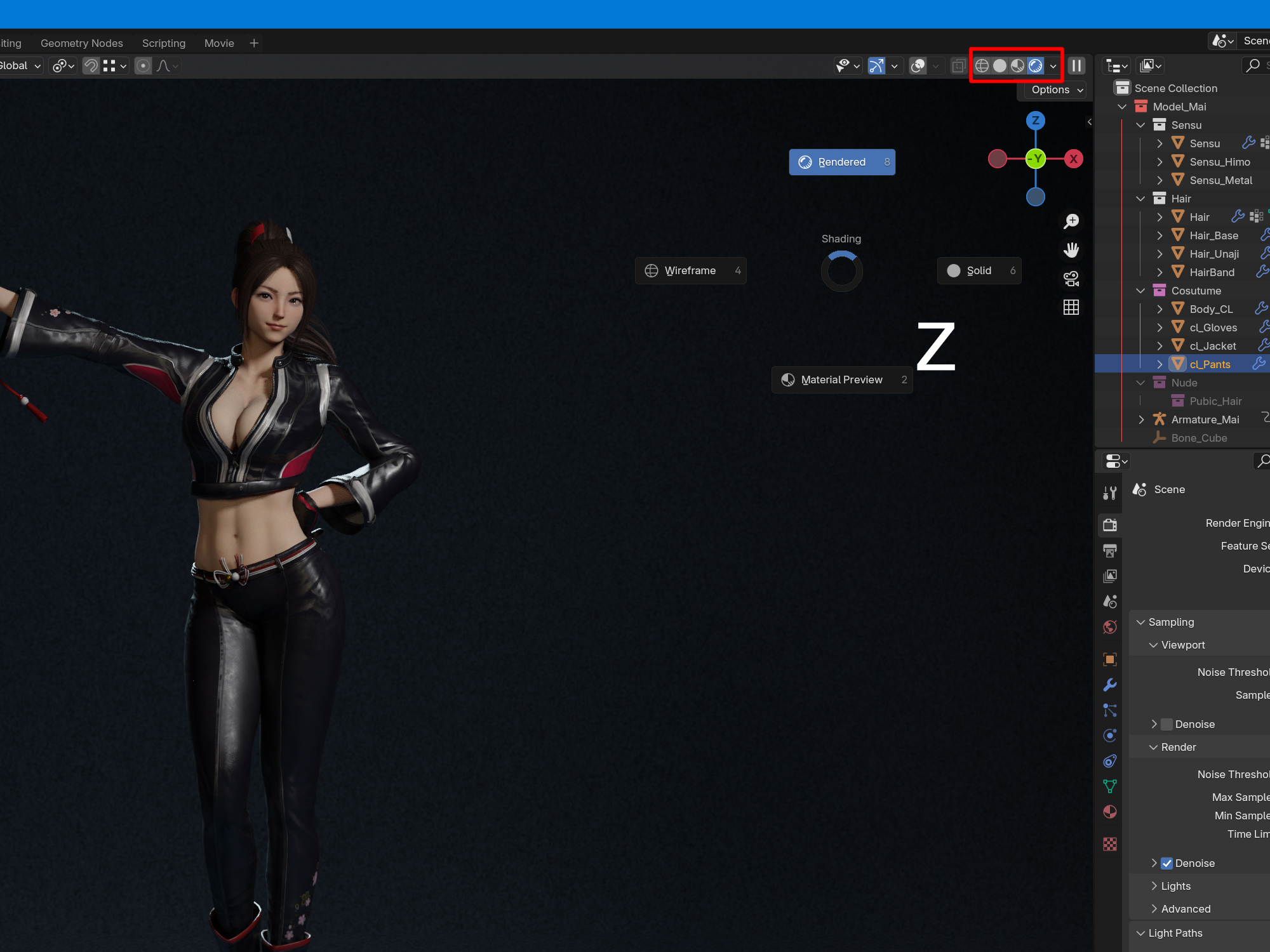
Pressing the Z key on the 3D view brings up the Pie menu.
This will allow you to switch between shooting methods in the 3D view.
(This toggle can also be selected from the bar above)
Rendered : lighting and rendering results.
Material Preview : shoot textures and other materials.
*The first time you select one, it will take some time.
Solid : normal view. Shooting with simple color coding.
Wireframe : shooting only at the edges.
The next section describes the operation of the 3D model.
This section describes how to change the model's costume and pose. The file “Shiranui_v1_250308” is used for the explanation. Costume Switching The costumes can be shown and hidden in the Outliner. Check the pink boxes “Cosutume” and “Nude” to show them, and uncheck them to hide them. Check the b...