Hello everyone!
Recently, I've been researching various color grading techniques for the next update of Shoost. After delving deeper into this topic, I feel like I can now put into words what I've been doing intuitively, and I've become even more knowledgeable about it!
Now, I'd like to introduce a method for matching the color tones of anime characters with real-world backgrounds, utilizing these color adjustment techniques I've learned.
The essential process for color matching can be broadly divided into three steps:
1. Matching the luminance.
2. Adjusting each RGB color individually.
3. Balancing the overall composition.
Let's take a look at the specific steps.


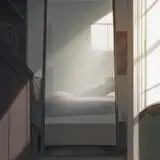
We start with an anime character placed on a real-world background. From this state, we'll match the character's colors to the real-world image.
First, convert the image to black and white to make the luminance easier to see.

Once in black and white, find the bright and dark areas in the real image and adjust the character's luminance to match these areas.

In this case, there's a person near where we want to place the character, so I used their white clothes as a reference for selecting bright and dark areas. We'll adjust the character to match the luminance of these parts. To make the areas you want to adjust easier to see, you can overlay a black-filled image on top.

We'll use level adjustment. Change the areas marked with red circles to make the adjustments.


Using level adjustment, I adjusted the luminance of the bright and dark areas to be about the same.
For a more detailed check, apply level adjustment to the entire screen and adjust the gamma value up and down. This allows you to check the luminance in dark and bright conditions more precisely.


In this case, when darkening the entire screen, we found that the bright parts of the character were a bit too bright. We'll darken them a little more.
After finishing the luminance adjustment, we'll move on to adjusting the colors for each RGB channel.
Now we'll adjust each RGB channel separately. The procedure is the same as for luminance adjustment, using tools like level adjustment for each color. Let's first check the images for each RGB channel.


There's a slight difference in R (Red) and B (Blue) in the bright areas, while the dark areas look almost the same. Personally, I find it effective to use G as a baseline and adjust R and B based on how they change in relation to G.

I've adjusted the R and B values. After these adjustments, the character should look much more like it belongs in the same space as the background.
Now for the finishing touches.
When taking photos or videos, you'd typically light the subject, so we'll make the character a bit brighter to make it look like it's being lit in the same way.

Instead of simply brightening it, consider the color tone when it becomes brighter for a more natural finish.
Finally, apply color grading to adjust the overall mood of the image, and you're done!

Here's a summary of the entire process.

Just matching the colors can greatly improve the atmosphere, so please give it a try! While we only focused on color adjustment this time, if you also consider adjusting contrast and camera composition, you can create an even more cohesive image.