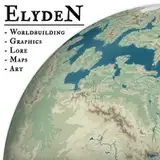
I made a quick map in a vague satellite image style for the planet Livyad recently and figured some of you would be interested in the process.
Not much thought went into the creation of the map - I just made something quickly - the whole thing took about 20 minutes at most and could easily be altered later - after all the planet is only observable by telescope and farsight, and it lies over 50,000,000 miles from Elyden, so people are bound to make mistakes when observing it (Remember how in the 1960s we still thought there were canals on Mars...).
So here's the rough steps that went into the maps' creation.
As always, I started with an equirectangular projection (twice as wide as it is high, in this case 1000px wide by 500pc high) and filled it with blue for the sea (085c93). I created another layer above this and drew the land on it (30430e).
I didn't go into this with a plan or idea of what I wanted the land to look like and just drew, altering the design as I went along. I went for a simple world of two main continents with some prominent peninsulas.
It's important to remember the distortion that happens around the poles once the map is switched from equirectangular to orthographic or any other projection, so take this into account when creating landmasses in those regions. You may need to switch between equirectangular and orthographic while drawing the land to see what the world looks like as a globe. You can do this by converting the image using G. Projector or globe-3d.vercel.app/.
Tinker with the image until you’re happy with the shape.

This is an easy step. Take this time to establish your shallow seas and deep waters to create more interesting oceans. No need to be exact at this point - you can always go back and adjust this during future steps as you see fit.
Create two layers between the land and sea. Mark one layer as the shallow water and draw in a soft brush with a pale blue (00feff). Think of things like lagoons and reefs, and other regions where you might find shallow water.
Mark the other layer as the deep water and draw in a soft brush with a darker blue (0d014d). Think of where large oceans and abyssal depths would be in your world.
You can make more layers if you wish, though given the small size of the map one layer for shallow and another for deep was more than enough for me. I can always come back and add more if I want to, but I wouldn't get too bogged down in details just yet.

This step is a bit more involved and requires the addition of various layers above the land layer. Set them as clipping masks. I created 6 (grass, ice, deserts. mountains, land, and plains) though you can create as many or as little as you want. Look at satellite images of Earth for inspiration and colour palettes.
I used a soft brush with a low opacity and built up the colours slowly. I also used some noise and scatter effects to create some variety.
As you can see from the below image, I was pretty rough when putting down my biomes. These are going to be mostly covered up by the clouds and other effects so there’s no need to get too detailed. You can always make a bigger map later on.
This is the most involved step and can take a while, depending on how much time you spend on it.

I then added some layers above this, each with various effects - a noise layer (filled with grey, then with noise added and set to soft light and opacity 60%), and a render clouds layer (filled with grey, with render clouds added, set to soft light and opacity 50%). These are to add a bit of granularity to break up the smoother surface of the land layers.
Finally, I added a layer with actual clouds that I found online (this is black and white so I had to set the layer style to screen and set the opacity to 60%). I added the cloud layer as a file so you can download it.
I played around with the opacities and layer styles for a bit to get something I was happy with.

I then added 30-degree graticules and then converted the image to Hammer projection using the Flexify 2 plug-in for photoshop.
And there you go! All that’s left is to convert it to a globe or any other projection you want and you have a simple and quick world map. I Added the PSD to the post as a file you can download to see what went into it.


















![[AI]久保翠&克勞蒂雅](https://xaiju.com/istorage/65716.jpg)