Wacom Cintiq Pro 24を使用していますが、時々不具合が発生することがあります。
具体的には、タッチ機能が反応しなくなったり、筆圧感知が効かなくなったり、CLIP STUDIO PAINTでカーソルが突然手のひらツールに変わって操作できなくなるといった症状です。
PCを再起動すれば直りますが、タブレットドライバの再起動でも直ります。
こちらの方が時間がかからず手軽なのでおすすめです。
I’m using a Wacom Cintiq Pro 24, and occasionally it experiences some issues.
Specifically, the touch function may stop responding, the pen pressure might not work, or in CLIP STUDIO PAINT, the cursor may suddenly switch to the hand tool, preventing normal operation.
Restarting the PC fixes these problems, but restarting the tablet driver works as well.
Since it’s quicker and more convenient, I recommend restarting the driver instead.
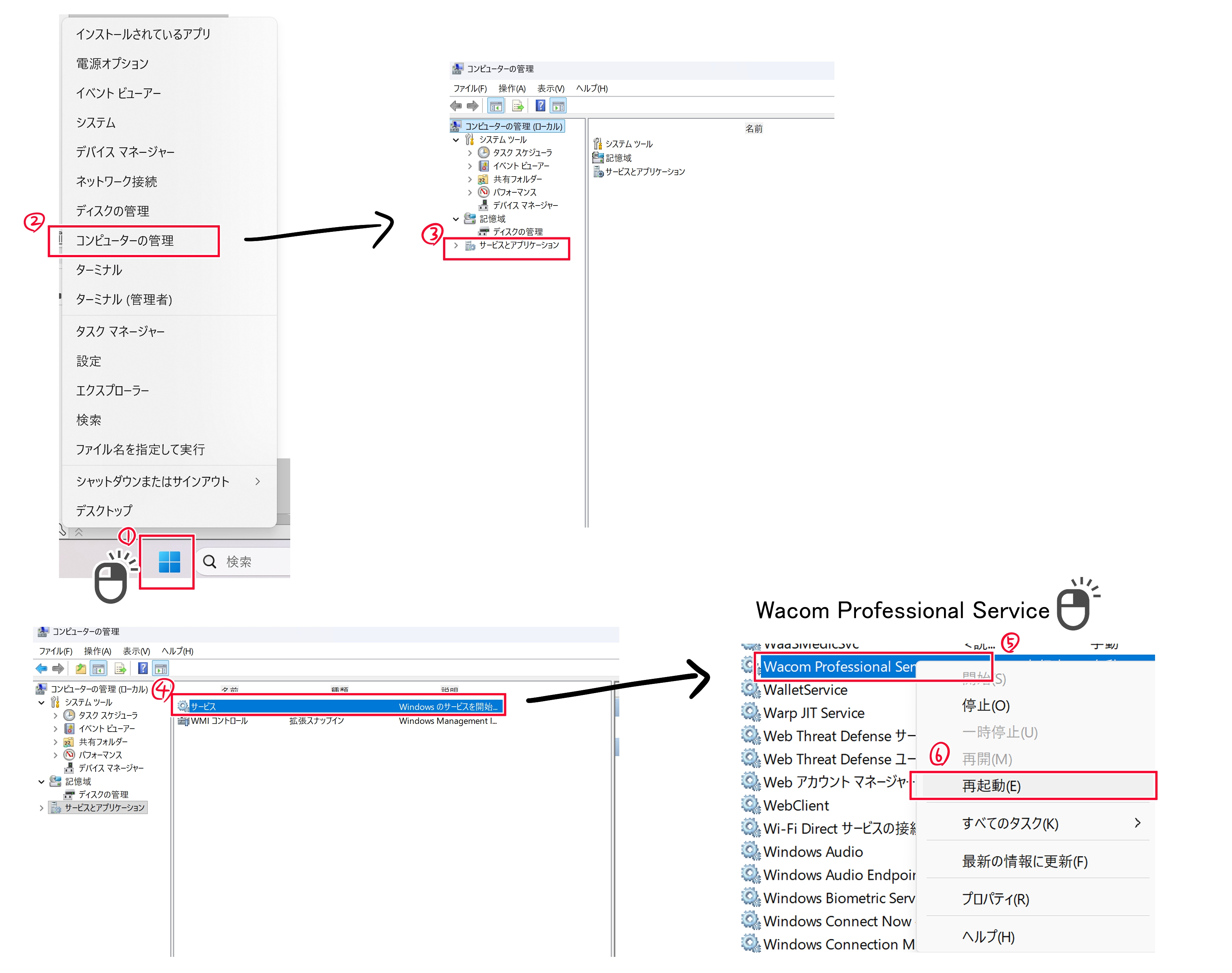
1,ウィンドウズマークを右クリック
2,「コンピューターの管理」を選択
3,「サービスとアプリケーション」を選択
4,「サービス」を選択
5,一覧から「Wacom Professional Service」を探し、右クリック
6,再起動を選択
※Windows11での方法です。
※事前にペイントソフトはすべて閉じておきます。
※ドライバ再起動後、Wacom Centerが開くまでペイントソフトを起動しないようにしてください。
昔、Bambooシリーズを使用していた時にも有効だった方法なので、Cintiq Pro以外のWacomタブレットでも可能かと思われます。
参考になれば幸いです。
1, Right-click the Windows icon.
2, Select Computer Management.
3, Choose Services and Applications.
4, Select Services.
5, Find Wacom Professional Service in the list and right-click it.
6, Select Restart.
※ This method is for Windows 11.
※ Be sure to close all painting software beforehand.
※ After restarting the driver, do not launch any painting software until Wacom Center has fully opened.
This method also worked when I used the Bamboo series in the past, so it should be effective for Wacom tablets other than the Cintiq Pro as well.
I hope this information is helpful.