使用方法をお読みください。またNalulunaAvatarsは0.2.33以降をお使いください。
古いバージョンでは、NalulunaSpaceCalibratorの情報を取得できないため、VIVEトラッカーの位置も補正されません。
Please read the instruction. Use NalulunaAvatars 0.2.33 or later.
Old versions do not get information from the NalulunaSpaceCalibrator, so the VIVE trackers position will not be corrected.
OculusのVR空間とSteamVRのVR空間のズレを補正するBeat Saber modです。OculusのHMDで、VIVEトラッカーを簡単に使用することが可能になります。このmod使用時は、OpenVR-SpaceCalibratorは不要です。
OculusのHMDを使用している場合、VIVEトラッカーやIndexコントローラーなどは、おかしな位置や角度で表示されます。これはOculusのVR空間と、SteamVRの空間が一致していないためで、なんらかの方法でこのズレを補正する必要があります。
一般的にはOpenVR-SpaceCalibratorを使用することで解決できますが、この空間のズレは完全に固定値で決まるものではなく、経験上、トラッキングが大きく外れたとき、長い時間経過、再起動などで微妙に (数cm~10cm程度) 変化してしまうため、そのたびにOpenVR-SpaceCalibratorで再度キャリブレーションを行う必要がありました。
このmodは、ビートセイバー内でこの補正を行えるだけでなく、キャリブレーション専用のトラッカーを用意してHMDにくっつけることで、(メニュー画面中は) 常時キャリブレーションを行い続けることが可能です。これにより、プレイ中に新たなズレが発生したときも自然に補正がされ続けます。
ただし、あくまでBeat Saberのmodであるため、Beat Saberの外 (他のゲームやアプリ) ではこのズレは補正されません。Beat Saber内、NalulunaAvatarsやAlternativePlay modのトラッカー位置はこのmodの補正が効きます。
This is a Beat Saber mod that corrects the misalignment between the Oculus VR space and the SteamVR VR space, making it possible to easily use the VIVE tracker with the Oculus HMD. OpenVR-SpaceCalibrator is not required when using this mod.
When using Oculus HMDs, VIVE trackers and Index controllers are displayed in odd positions and angles. This is because the Oculus VR space and the SteamVR space do not match, and this misalignment needs to be corrected in some way.
Generally, this can be solved by using OpenVR-SpaceCalibrator, but this spatial misalignment is not a completely fixed value, and in my experience, it changes slightly (a few cm to 10 cm) when the tracking is off by a large amount, after a long time, after a reboot, etc. Therefore, it was necessary to re-calibrate with OpenVR-SpaceCalibrator each time.
This mod not only allows this correction to be performed in Beat Saber, but by preparing a dedicated calibration tracker and attaching it to the HMD, it can continue to calibrate at all times (during the menu screen). This ensures that any new misalignments that occur during play will continue to be corrected naturally.
However, this is a Beat Saber mod, so outside of Beat Saber (other games or apps), this correction will not be applied. In Beat Saber, the tracker positions in NalulunaAvatars and AlternativePlay mods are corrected by this mod.
1. ModAssistant で BeatSaberMarkupLanguage をインストール
2. ダウンロードしたファイルを展開して、以下に移動(上書き)
* C:\Program Files (x86)\Steam\steamapps\common\Beat Saber
(zip内のPlugins、UserDataフォルダをここに移動(上書き)します)
3. ゲーム起動後、画面左の「MODS」に「Naluluna Space Calibrator」が追加されています
* 上記の記述は、Steam版Beat Saberのデフォルトインストール先の場合なので、
インストール先が異なる場合は適宜読み替えてください。
1. Install BeatSaberMarkupLanguage by ModAssistant
(If your mod environment is already set up, it's probably already in there.)
2. Extract the downloaded zip file to the following location (overwrite)
* C:\Program Files (x86)\Steam\steamapps\common\Beat Saber
(Move (overwrite) the Plugins and UserData folders in the zip here)
3. "Naluluna Space Calibrator" has been added to "MODS" (left side of the screen)
◆ SteamVR上で、Oculus HMDとVIVEトラッカーを同時に認識させる
Ensure Oculus HMD and VIVE trackers are recognized on SteamVR
まずSteamVR上で、Oculus HMDとVIVEトラッカーの両方が同時認識される状態にしてください。HMDしか認識されていない場合は、下記リンクのように「"activateMultipleDrivers": true」が設定されているか確認してください。”requireHmd”は変更不要です。
Lighthouse以外のHMD + Viveトラッカーでのフルボディトラッキング
https://vrchatjp.playing.wiki/d/VIVE%A5%C8%A5%E9%A5%C3%A5%AB%A1%BC%A4%F2%BB%C8%CD%D1%A4%B7%A4%BF%A5%D5%A5%EB%A5%DC%A5%C7%A5%A3%A5%C8%A5%E9%A5%C3%A5%AD%A5%F3%A5%B0
First, make sure that both the Oculus HMD and VIVE trackers are recognized together on SteamVR. If only the HMD is recognized, check if ["activateMultipleDrivers" : true] is set as the link below. "requireHmd" does not need to be changed.
Oculus Touch x Vive Trackers Guide
https://www.reddit.com/r/oculus/comments/8f7c0o/oculus_touch_x_vive_trackers_guide/
◆ Oculus HMD + VIVEトラッカー3つ環境で、適宜キャリブレーションして使う場合
キャリブレーションにどれか1つトラッカーを使用するため、キャリブレーション時は体に装着せず、手に持てるようにします。キャリブレーションが終われば、体に装着して使用できます。
1. 動画0:15のように、左メニューから [NalulunaSpaceCalibrator] を開きます
2. 中央のリスト左は、キャリブレーションに使うOculusコントローラーを選択します。動画では右コントローラーを選択しています
3. 中央のリスト右は、キャリブレーションに使うVIVEトラッカーを選択します。リストには位置を表す座標が表示されているので、数字を見ながら大きく動かして、どれが対象のVIVEトラッカーか確認して選択します
4. 片手でOculusコントローラーとVIVEトラッカーを同時に持ちます。2つの位置関係がズレないように、その上でトラッキングにも支障がないようにしてください
5. もう片方のコントローラーで中央下の [Calibrate] を押します。画面左のStatusがCalibratingに変わります。問題がある場合は原因を表示します (英語)
6. Calibratingに変わったら、2つコントローラーをもった手を大きく八の字に動かします。ゆっくり角度を大きく変化させることを重視してください
7. 補正に必要なサンプルが集まるか、10秒が経つとキャリブレーションが終了します。補正もこの時点で完了しています
8. NalulunaAvatarsで、VIVEトラッカー位置が正常に表示されるようになっています。もし、アバターに使用しないトラッカーがある場合、トラッカー部位の自動認識がうまくいかない場合があります。動画のように、[TRACKER MAPPING] を押して、部位の手動割当を行ってください
◆ Oculus HMD + キャリブレーション専用のVIVEトラッカーを用意できる環境で、常時キャリブレーションして使う場合
キャリブレーション専用 (アバターの部位には割り当てない) のVIVEトラッカーを用意することで、毎回の装着のしなおしや、面倒なキャリブレーション操作の手間をなくすことができます。
キャリブレーション専用トラッカーはHMDに固定します。バンドで巻く場合、CV1のLED発光部や、Questのカメラは覆わないように気を付けてください。LEDの位置は、暗闇にしてスマホのカメラで見ればわかります。
1. 動画0:08のように、左メニューから [NalulunaSpaceCalibrator] を開きます
2. 中央のリスト左は、キャリブレーションに使うOculus HMDを選択します
3. 中央のリスト右は、キャリブレーションに使うVIVEトラッカーを選択します。リストには位置を表す座標が表示されているので、数字を見ながら大きく動かして、どれが対象のVIVEトラッカーか確認して選択します
4. 画面左の [Keep Calibrating in Menu] をオンにします。画面左のStatusがCalibratingに変わります。問題がある場合は原因を表示します (英語)
5. Calibratingに変わったら、頭を大きく八の字に動かします。ゆっくり角度を大きく変化させることを重視してください
6. キャリブレーション終了はありません。メニュー画面中は常にキャリブレーションと位置補正をし続けています (曲プレイ中は事故防止のためキャリブレーションしません)
7. NalulunaAvatarsで、VIVEトラッカー位置が正常に表示されるようになっています。もし、アバターに使用しないトラッカーがある場合、トラッカー部位の自動認識がうまくいかない場合があります。動画のように、[TRACKER MAPPING] を押して、部位の手動割当を行ってください
8. OculusとSteamVRのVR空間を合わせた時点で、Indexコントローラー(あれば)の位置も同時に補正されています。SteamVR起動時、Oculusコントローラーの電池を抜いて認識されないようにしておくと、Beat SaberがIndexコントローラーをメインコントローラーとして認識するため、Oculus + Indexコントローラーの環境で普通に遊ぶことも可能です
◆ For Oculus HMD + 3 VIVE trackers in an environment with 3 trackers, with calibration each time
Since one of the trackers is used for calibration, the tracker needs to be held in the hand instead of being worn on the body during calibration. Once the calibration is finished, you can put it back on your body.
1. Open [NalulunaSpaceCalibrator] from the left menu as shown in the movie 0:15.
2. In the center list left, select the Oculus controller to be used for calibration. In the video, the right controller is selected.
3. On the right of the center list, select the VIVE tracker to be used for calibration. The list shows the coordinates that represent the position, so move the VIVE tracker while looking at the numbers to confirm which one is the target VIVE tracker.
4. Hold the Oculus controller and the VIVE tracker in one hand at the same time, making sure that the two are firmly positioned and that the tracking does not interfere with them
5. Press [Calibrate] in the lower center with the controller in the other hand. The Status on the left side of the screen will change to Calibrating. If there is a problem, the cause will be displayed.
6. When the status changes to Calibrating, move your hand with the two controllers in a large figure-eight motion. ( Make sure to focus on slow and large changes in angle )
7. Calibration will be completed when the sufficient samples for correction are collected or after 10 seconds. The correction is also complete at this point.
8. VIVE trackers position is now displayed correctly in NalulunaAvatars. If there is a tracker that is not used for the avatar, the automatic recognition of the tracker role may not work. Please press [TRACKER MAPPING] to manually assign the role as shown in the video.
◆ For constant calibration with Oculus HMD + VIVE tracker dedicated for calibration
By preparing a dedicated VIVE tracker for calibration (not allocated to the avatar's role), you can eliminate the hassle of reattaching the tracker each time and the tedious calibration operation.
The dedicated calibration tracker is fixed to the HMD. When wrapping it with a band, be careful not to cover the LED emitting part of the CV1 or the cameras on the Quest; the location of the LEDs can be seen in the dark with the camera on your phone.
1. Open [NalulunaSpaceCalibrator] from the left menu as shown in the video 0:08.
2. In the center list on the left, select the Oculus HMD to be used for calibration.
3. In the center list on the right, select the VIVE tracker to be used for calibration. The list shows the coordinates of the location, so move the VIVE tracker while looking at the numbers to confirm which one is the target VIVE tracker and select it.
4. Turn on [Keep Calibrating in Menu] on the left side of the screen. The Status on the left side of the screen will change to Calibrating. If there is a problem, the cause will be displayed.
5. When the status changes to Calibrating, move your head in a large figure-eight motion. ( Make sure to focus on making large changes in the angle slowly )
6. There is no calibration stop. Calibration and position correction will continue during the menu screen. (No calibrating during song play to prevent accidents)
7. VIVE trackers position is now displayed correctly in NalulunaAvatars. If there is a tracker that is not used for the avatar, the automatic recognition of the tracker role may not work. Please press [TRACKER MAPPING] to manually assign the role as shown in the video.
8. When the Oculus and SteamVR VR spaces are aligned, the position of the Index controllers (if you have) are also corrected at the same time. If you remove the battery from the Oculus controller when you start SteamVR, The Index controllers are recognized as the main controllers, so you can play normally with the Oculus + Index controllers environment.
このmodを使用すると、Beat Saber起動中はOpenVR-SpaceCalibratorは不要になりますが、仮に同時に動いていたとしても不具合なく動作します。その場合modは、OpenVR-SpaceCalibratorが補正した後のVR空間と、現在のVR空間の違いで補正を行います。OpenVR-SpaceCalibratorのキャリブレーション後に発生したズレが補正されます。
ちなみにこのmodはOpenVR-SpaceCalibratorのソースコードは含んでいません。特異値分解を使用しない、より軽いアルゴリズムを採用しています。
With this mod, OpenVR-SpaceCalibrator is not needed while Beat Saber is running, but even if it were running at the same time, it would work without problems. In this case, the mod performs correction between the VR space that OpenVR-SpaceCalibrator has corrected and the current VR space. Any misalignment that occurred after calibration by OpenVR-SpaceCalibrator will be corrected.
Note that this mod does not include the OpenVR-SpaceCalibrator source code. It uses a lighter processing algorithm that does not use singular value decomposition.
"-vrmode oculus" 使用時や、(Steamではなく)Oculusストアで購入した Beat Saber でこのmodを使用する場合は、Experimentalタブの [Support Oculus Mode] をオンにしてください。まだ実験段階の機能です。
When this mod is used with "-vr mode oculus" or with Beat Saber purchased from the Oculus store, please turn on "Support Oculus Mode" in the Experimental tab. This feature is still in the experimental stage.
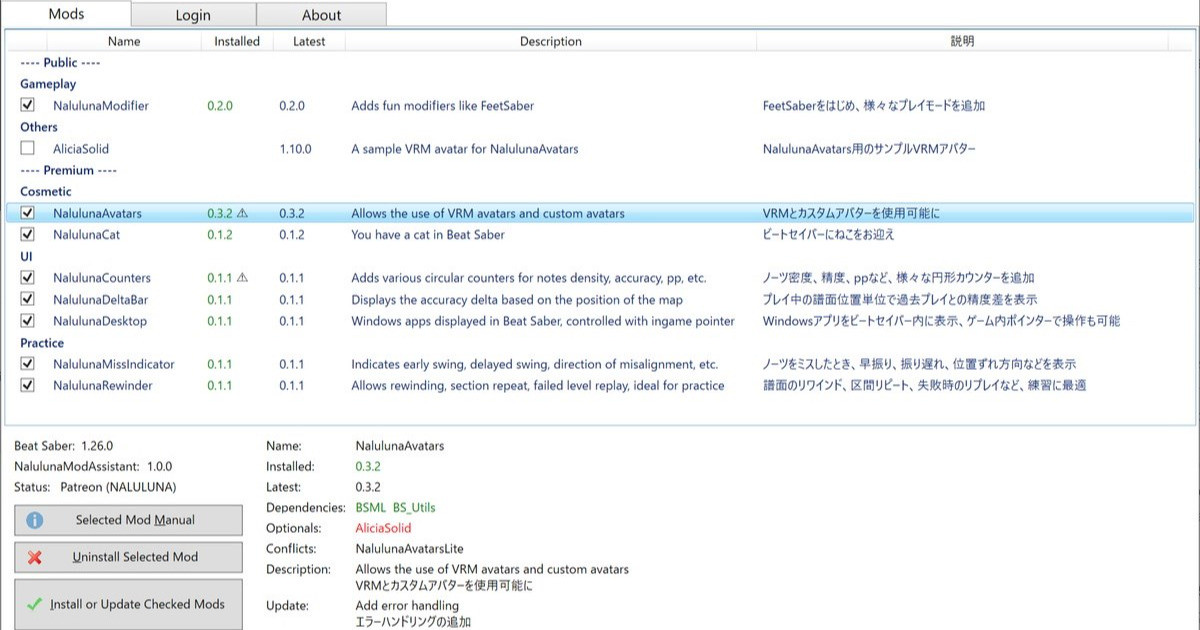
支援者様に公開しているわたしの mod の管理ツールです。mod のインストール、アンインストールや、更新内容の確認が可能です。mod のインストールは、支援中の Fanbox または Patreon アカウントでのログインが必要です。 今後、わたしの mod の配布や更新はこのツールを通して行います。まだわたしの mod 全部が登録さ...
NalulunaSpaceCalibrator 0.1.0 以降は NalulunaModAssistant でインストール可能です。
NalulunaSpaceCalibrator 0.1.0 or later are available with NalulunaModAssistant.
NalulunaSpaceCalibrator 0.0.7 for Beat Saber 1.24.1
NalulunaSpaceCalibrator-0.0.7-bs1.24.1
より古いバージョンが必要な場合、FANBOX のメッセージ ( https://bit.ly/3XhHhlt ) でご連絡ください。
If you need a older version, contact me via FANBOX message. ( https://bit.ly/3XhHhlt )
0.0.7
- Target を選択しても Target device not found となる場合がある不具合を修正
- 手動キャリブレーションのタイムアウト時間を増加
- サンプル数を増やす設定を追加
0.0.6
- AlternativePlay mod使用時にエラーが出る不具合を修正 (yasさん、ありがとうございます)
なるるるるな / NALULUNA
2023-03-11 14:58:25 +0000 UTCなるるるるな / NALULUNA
2023-03-02 17:05:04 +0000 UTCなるるるるな / NALULUNA
2023-01-28 12:12:00 +0000 UTCなるるるるな / NALULUNA
2023-01-25 14:12:08 +0000 UTCなるるるるな / NALULUNA
2023-01-22 15:37:44 +0000 UTC