Discord Server (Patreon-Exclusive)
Added 2023-04-20 23:46:33 +0000 UTCPatreon supporters now have exclusive access to the Japanese Ammo Discord server where you can connect with fellow Japanese language learners and, of course, with your sensei - me! Not only can you practice your language skills with others, but you can also share your study progress and ask me any questions you may have about grammar or vocabulary.
But that's not all - the server is a fun, interactive community where you can share photos from your trips to Japan, cute animal pictures, funny memes, and engage in casual conversations about life. Plus, you may be able to find study partners to keep you motivated on your language-learning journey.
For those who love gaming, we have a dedicated category where you can discuss all things gaming and even check out my Twitch channel. So, if you haven't already, be sure to join our exclusive Patreon Discord server today and take your Japanese language skills to the next level!
How do I link my Discord account to Patreon?
How to link your Discord account on Patreon
If you need to create a Discord account, we will guide you through that during this process:
- Log in to your Patreon account
- Click on Settings from the left side menu
- Click on More and then Connected Apps from the menu bar
- Click the Connect button next to Discord under App Integrations
- Enter the email address or phone number you use to log in with Discord and your password and click the Login button
- Click the Authorize button
- You've successfully linked Discord to Patreon! You may need to refresh the page
Joining and Leaving a Discord server
Once you've connected your Discord and Patreon accounts, any servers you're eligible to join will appear on the Discord Apps settings page. Click the Join server button to get your role.
At the Japanese Ammo server, we have two categories: "Nihongo" and "Twitch-gaming". We understand that some of you may only be interested in learning Japanese and receiving notifications related to the Japanese language. You can customize your notification settings to exclude the gaming category. However, if you are interested in both categories, feel free to chat about both!
Where Are My Notification Settings On A Server?
1. Go to the server you want to adjust your notifications for and press on the server name in the upper left corner to open the drop-down menu. You can also right-click on the server name to access the drop-down menu.
2. Select Notification Settings from the drop-down menu.
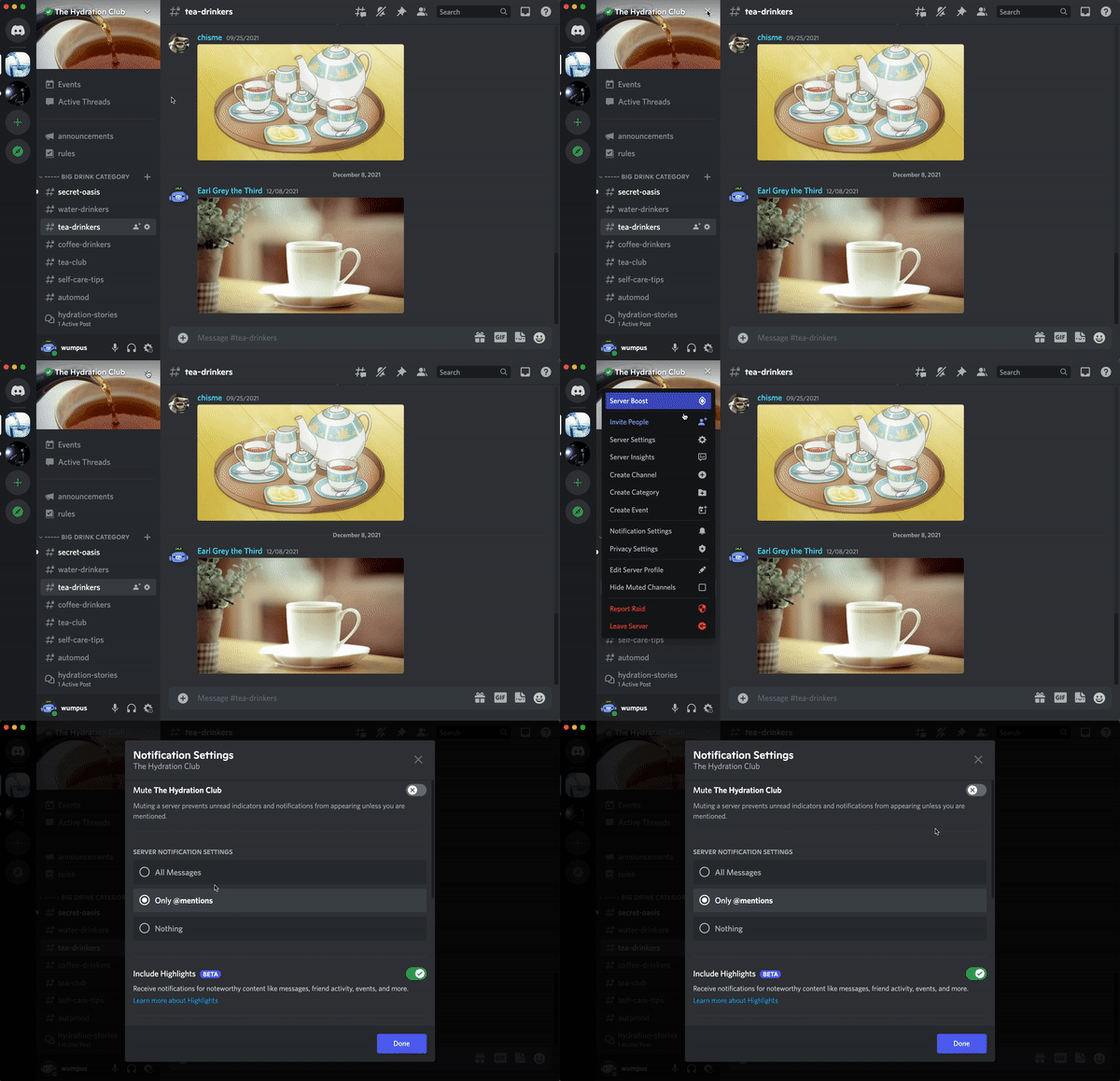
3. Now you can see the Notification Settings menu! This is where you can customize your notifications for this server.
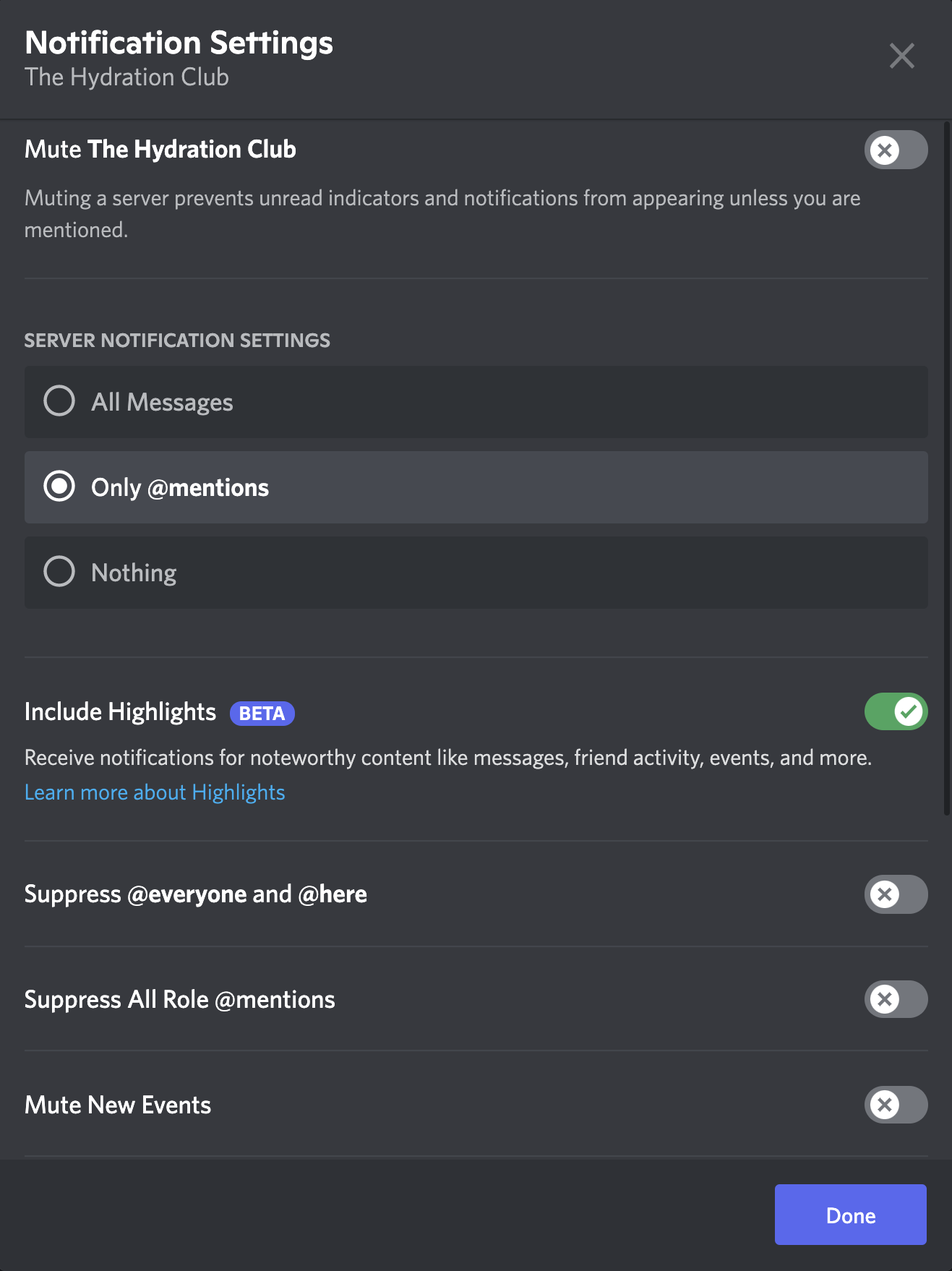
Server-Wide Mute
Simplest addition first. Instead of muting each channel individually, you can check the mute server box to auto-mute each channel within the server. Keep in mind, this is a blanket mute, and isn't selective. You'll notice that the bell icons next to channel names don't update when this option is selected, but all of the options in the notification settings blur out:
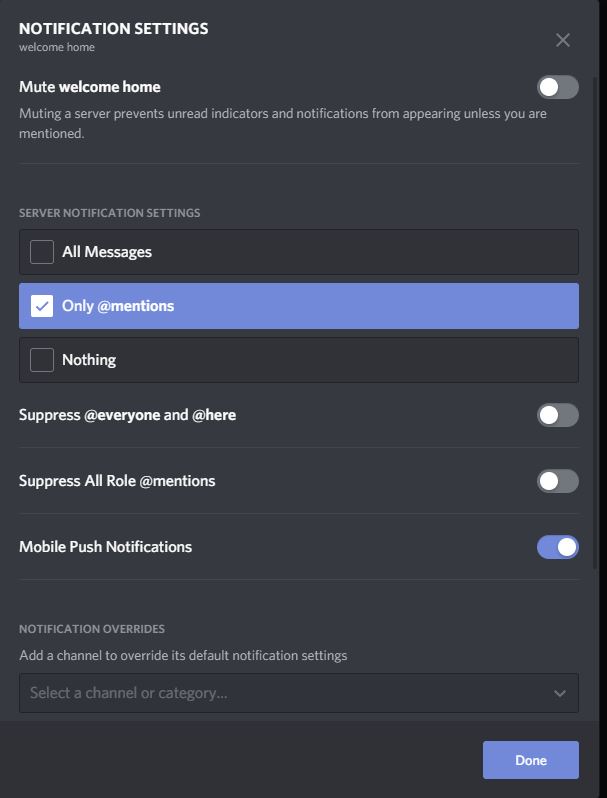
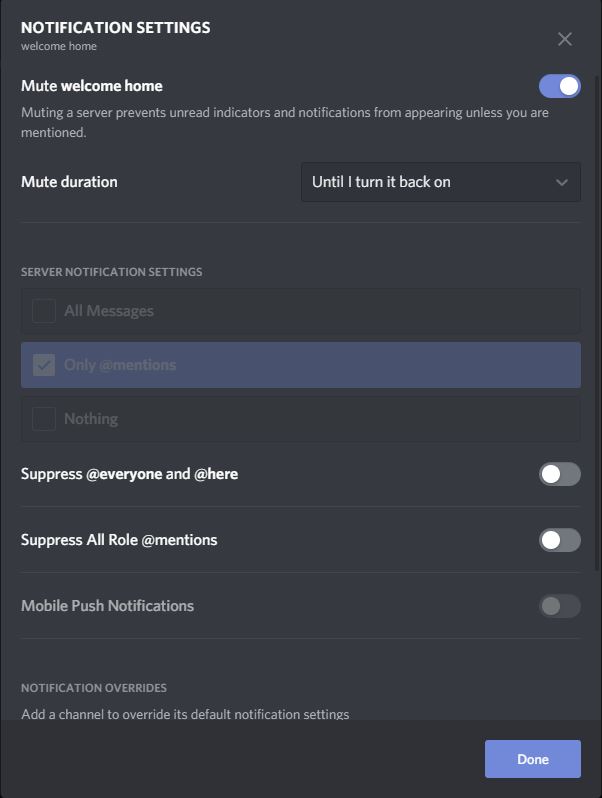
Awesome. Remember, this will mute:
ALL NOTIFICATIONS.
ALL CHANNELS.
IN THE SELECTED SERVER.
with the exception of @everyone mentions. This also means you won't get Mobile Push Notifications if you switch over to mobile. More on that in a bit.
Server Notification Settings
Alright. We found the total nuclear option in notification muting. Let's get a little more in-depth.
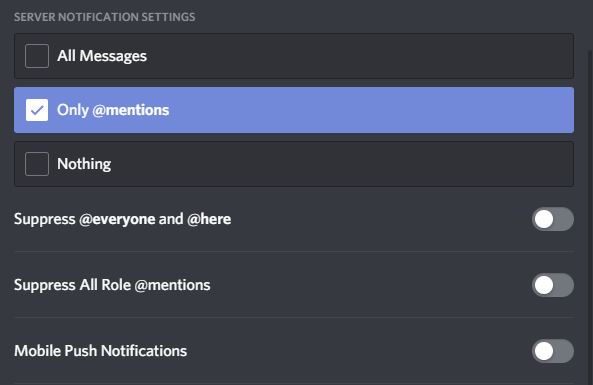
Starting with the selection on the top, the circular option selections actually apply to each channel in a similar blanket format as the mute server option, but with the added option of allowing us to choose different levels of notifications.
Clicking an option in the Server Notifications Settings updates all of our settings instantly:
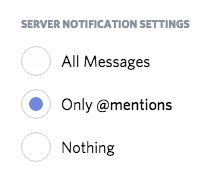
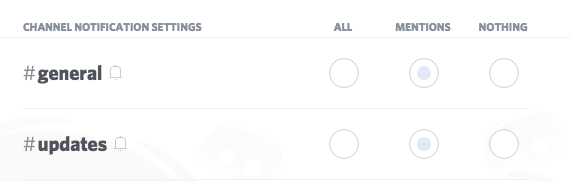
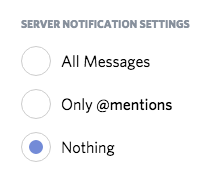
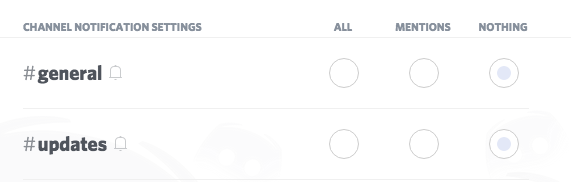
Pretty straightforward. Moving on, the other two functions in the window are pretty simple:
- The Suppress @everyone option disables any @everyone mention from generating a notification, on the entire server.
- The Mobile Push Notifications option means any notification you'd normally get adds a push notification on your Android / iOS device if you're signed on with the same account! Super handy!
Channel Notification Settings
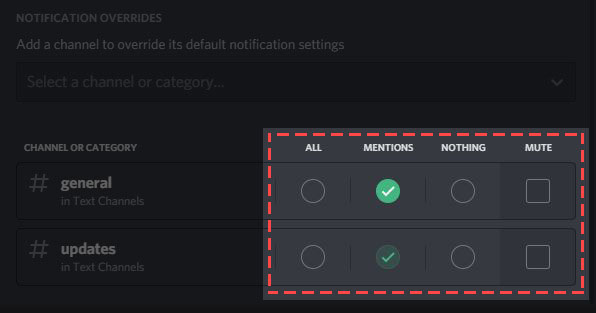
The last section of the notification settings menu lets you adjust individual settings per channel. Use the Notification Overrides section to select different channels in a drop-down. There are a few settings to explore here:
Just like before, you can mute individual channels entirely by selecting mute. You can still do this on the main channel page, but here you can quickly address problem channels in a list fashion.
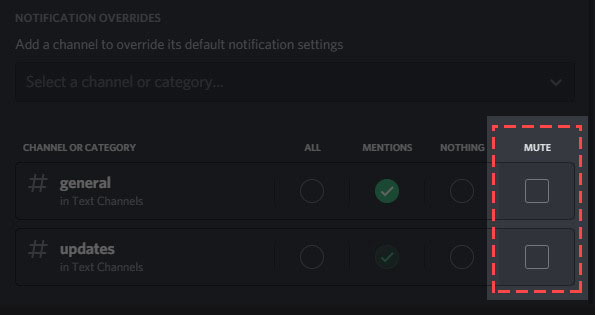
Even after each channel updates based on how you selected your server notification settings, you can make individual channel notification selections in the scroll down menu as well.
Comments
Hi! 1. Click on Settings from the left side menu 2. Click on More and then Connected Apps from the menu bar 3. Click the Connect button next to Discord under App Integrations 4. Enter the email address or phone number you use to log in with Discord and your password and click the Login button 5. Click the Authorize button :)
Japanese Ammo with Misa
2023-04-24 20:30:50 +0000 UTCSo what's the link to the server? 😄
Велин Порчев
2023-04-22 19:41:46 +0000 UTC